
Buffering is one of the IPTV problems people search about most, and the usual advice is a list: restart the router, clear the cache, buy faster internet, try a different app. For a Maryland household, an IPTV buffering fix works better the other way around.
When the buffering happens, on which channels and on which devices points to the part of the setup that deserves attention, and the right change follows from that. This page shows how to read the pattern, why fast internet does not always prevent buffering, what to change for each cause, and what is specific to Fire TV. For problems beyond buffering, start with our guide to IPTV not working.
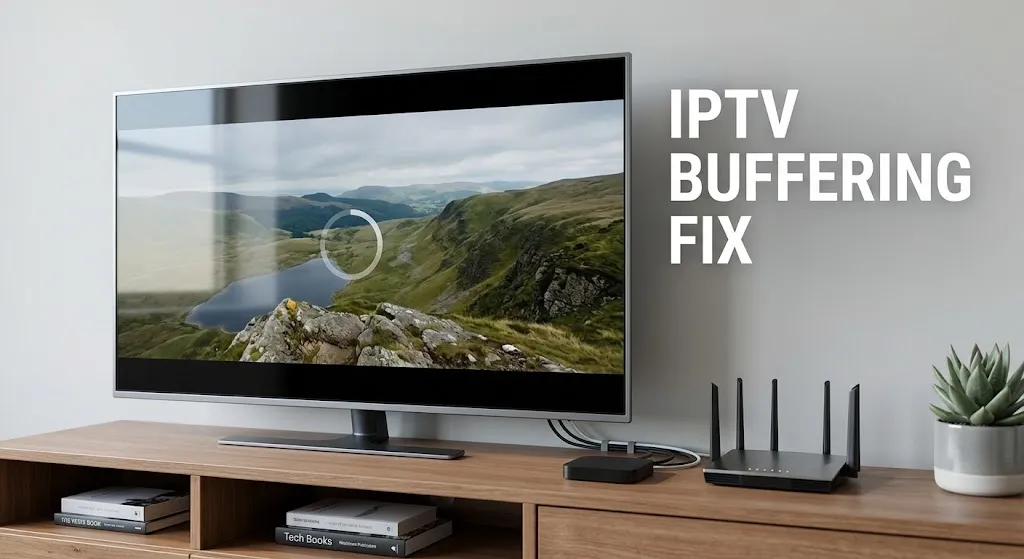
An IPTV buffering fix starts with the pattern. Buffering on every channel and every device points to the connection. Buffering only in the evening points to household traffic or a busy source. One channel buffering while others play points to the source. One device buffering, or only on Wi-Fi, points to that device or its wireless link. Fast speed-test results do not rule out the device, the Wi-Fi or the source, so check those before changing plans or apps.
IPTV Buffering Fix Starts With the Pattern
Before changing any setting, note when the buffering happens. The pattern does not prove a cause, but it tells you what deserves checking first.
| When it buffers | What deserves checking first |
|---|---|
| Every channel, all the time, on every device | The internet connection and router |
| Mostly in the evening | Household traffic at that hour, or a busy source |
| One channel or one source, while others play normally | The source itself |
| One device only, while others in the house play the same channel | That device |
| Only on Wi-Fi, not on a wired connection | The wireless link to the device |
| Speed tests look fast, but it still buffers | The Wi-Fi, the device or the source, not the plan |
The quickest way to sort these out is to play the same channel on a second device, or on the same device over a wired connection. Whatever differs between the setup that buffers and the one that does not is where to start.
When Your Internet Is Fast but IPTV Still Buffers
This is among the questions people search most about buffering, and the answer is that a fast plan only rules out one cause among several.
Speed Tests Measure a Moment
A speed test shows what a connection delivered to a test server during the few seconds of the test. It does not show whether the stream’s source stays steady, whether the Wi-Fi link to the TV holds up during a two-hour game, or whether other devices in the house take a share of the connection in the evening.
How much headroom a household needs is covered in our guide to internet speed for IPTV in Maryland; for buffering, the more useful test is running a speed check on the TV or streaming device itself, at the time the buffering happens.
Wi-Fi Between the Router and the TV
The router may receive a fast connection while the TV gets only part of it. Walls, floors, distance and interference all reduce what reaches a device over Wi-Fi. If a device buffers on Wi-Fi but plays smoothly on a wired connection, the wireless link is the difference.
The Device Itself
An older or heavily loaded device can struggle with a stream even when the network is fine. If one device buffers while another in the same room plays the same channel smoothly, the device that buffers deserves attention: its storage, its software version and how many apps are running on it.
The Source
If one channel or one source buffers while others play normally on the same device and connection, the device and network have just shown they can handle a stream. The source itself then deserves checking, and a faster plan or a new router will not change a stream that arrives unsteady.
Fixes by Cause
Match the fix to what the pattern pointed to.
Network: Ethernet, Router Placement and Wi-Fi Bands
A wired Ethernet connection removes the wireless link from the equation, and it is the first thing to try when buffering happens only on Wi-Fi. Restarting the modem and router is also a reasonable first step.
On Wi-Fi, the choice between the 2.4 GHz and 5 GHz bands is a trade-off rather than a rule. TP-Link’s support guidance explains that the 2.4 GHz band reaches farther than 5 GHz, so it suits coverage, but that 2.4 GHz is more crowded and suffers more interference; where interference is heavy and a device supports 5 GHz, it recommends 5 GHz. ASUS adds that 5 GHz is faster but has a shorter range and passes through obstacles less easily.
A TV close to the router may do better on 5 GHz; one several walls away may do better on 2.4 GHz. Moving the router to a more central, open spot can help either way.
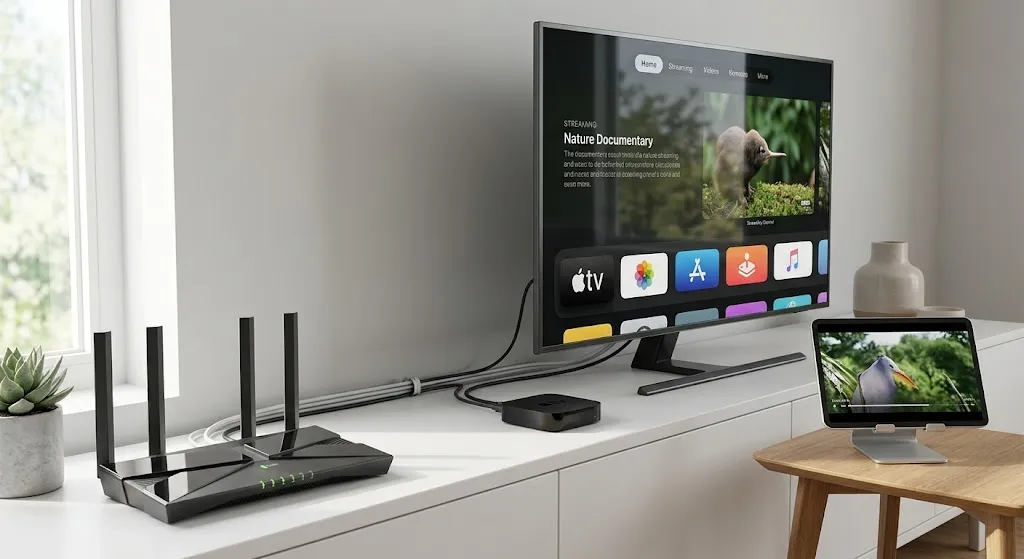
Show Image A wired connection takes the wireless link out of the question. On Wi-Fi, distance and walls decide which band works better.
Device: Restart, Update, Clear the Cache
Restart the device and update both its software and the player app. Clearing the app’s cache removes temporary files without signing you out; Google’s help page for playback problems on Google TV lists it among its steps. Clearing the app’s data is a different step that can erase the playlist or login you entered, as the IPTV not working guide linked above explains, so keep your source details at hand before choosing it.
Closing apps you are not using frees up the device for the stream. If the device is low on storage, removing apps you no longer need can also help, as technology outlets such as How-To Geek note in their Fire TV buffering guidance.
Player: Decoder and Built-In Player Options
Some IPTV players let you change how video is decoded or which built-in player handles a stream. OTT Navigator’s developer documents choosing between hardware and software decoders, and an external player, in its FAQ. XCIPTV PLAYER’s Google Play listing describes two built-in players, ExoPlayer and VLC. Where a player offers these options, switching them is a way to test whether a stream that buffers in one mode plays better in another.
Some players also expose a buffer size setting. The developers whose documentation was reviewed for this page do not publish a recommended value, so this page does not give one; numbers passed around in forums and videos are not developer guidance.
Source: When Only the Service Can Fix It
When the pattern points to the source, such as one channel buffering on every device, or buffering that tracks busy evening hours on a single service, nothing on your side will change it. Report the channel and the times to the service that issued the source details.
IPTV Buffering on Firestick
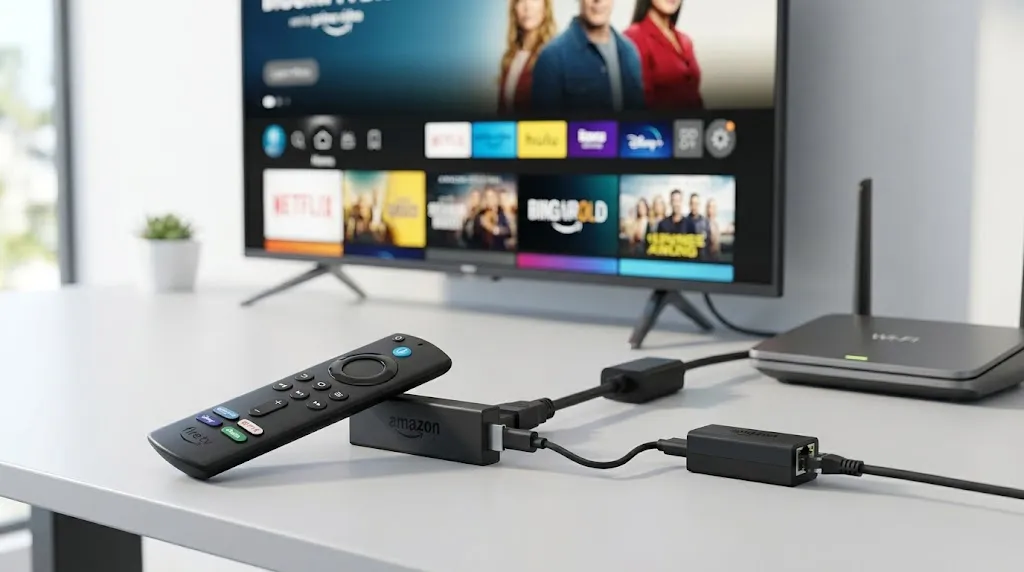
Fire TV devices follow the same patterns, with a few Fire TV-specific steps. For the Fire TV Cube, Amazon’s streaming troubleshooting page lists restarting the device, clearing app data, restarting home network devices, connecting by Ethernet with the included adapter where possible, and using a High-Speed HDMI cable for 4K content. Amazon’s help page for clearing app data and cache on Fire TV gives the path: Settings, Applications, Manage Installed Applications, then the app.
Fire TV sticks plug directly into the TV, so their Wi-Fi reception depends on where the TV sits; if a stick buffers only on Wi-Fi, its position relative to the router matters. Setup questions specific to Fire TV, including how to tell Fire OS from Vega OS, are covered in our guide to IPTV setup on Firestick.
Show Image Where a stick sits behind the TV affects its Wi-Fi reception.
Conclusion
An IPTV buffering fix starts with when it buffers. Every channel on every device points to the connection; evenings point to household traffic or a busy source; one channel points to the source; one device or Wi-Fi only points to that device or its wireless link. A fast speed test rules out only the plan.
Match the fix to the cause: Ethernet or a better-placed router and the right Wi-Fi band for the network, a restart, update and cache clear for the device, decoder or built-in player options where a player offers them, and a report to the service when the source is the problem.
A VPN is not a general test for buffering; changing the network route does not address a device or a source that is the actual cause.
For problems beyond buffering, return to our guide to IPTV not working. Claims here are checked against primary sources where available, with secondary reporting named where it is the available record, as described on our About page; if a platform’s guidance changes, let us know.
Sources
All sources are linked where they are cited above. Accessed September 2026.
- Amazon: Resolve Streaming Issues on Fire TV Cube · Clear App Data and Cache on Fire TV
- Google: Fix playback problems on Google TV
- Router makers: TP-Link, 2.4 GHz vs 5 GHz · ASUS, 2.4 GHz vs 5 GHz
- Player developers: OTT Navigator FAQ · XCIPTV PLAYER on Google Play
- Secondary: How-To Geek, Fire TV buffering