
IPTV setup on Firestick used to have one answer. For a Maryland household buying a Fire TV Stick today, it can have two, because Amazon’s documentation now lists some current Fire TV Stick models on Vega OS while other Fire TV devices run Fire OS, and the steps that work on one system do not exist on the other.
This guide starts with the question most setup instructions skip, which system your model runs, then covers the setup path on Fire OS, what Amazon’s blocking of certain apps does and does not cover, and what a Downloader code actually is. For the three pieces every setup needs on any device, see our IPTV setup guide.
IPTV setup on Firestick depends on the model. Amazon’s documentation lists the Fire TV Stick 4K Select (2025) and Fire TV Stick HD (2026) on Vega OS, where installing apps from outside Amazon’s store requires a developer account. Other Fire TV devices run Android-based Fire OS, where a player can come from the Amazon Appstore or, with a setting enabled, from its developer. Amazon’s 2025 blocking targets apps identified as pirated, not players in general.
Start Here: Which Fire TV Do You Have?
Every other step depends on this one. Most setup guides begin with installing an app called Downloader; on some current sticks, that route does not exist.
Find Your Model Name
On a Fire TV Stick, open Settings, then My Fire TV, then About; on a Fire TV smart TV, the same page sits under Settings, then Device & Software. The first entry on that page is the device’s name. Compare it with Amazon’s own Fire TV device specifications, which list the operating system for each model.
Amazon’s documentation lists the Fire TV Stick 4K Select (2025) and the Fire TV Stick HD (2026) on Vega OS. The same documentation describes Fire OS as a fork of Android and lists other models, including 2026 Fire TV smart TVs such as the Hisense U7, on Fire OS. A name alone can mislead: two different sticks have been sold as the Fire TV Stick HD, one on each system, so the model year matters.
If Your Model Runs Vega OS
On Vega, the setup path described in the rest of this guide does not apply. Amazon’s Vega developer documentation says that installing apps from outside the store, which it calls Developer Mode, requires authentication with an Amazon Developer Account through Amazon’s Vega command-line tools, and the device reboots to enable it. That is a tool for app developers, not a household setting.
For a Vega stick, the practical route is the Amazon Appstore on the device itself: if a player’s developer has published a version there for Vega, it installs like any other app. If it has not, the player is not available on that stick. Reporting on Vega, including PCWorld’s, notes that it runs only apps from Amazon’s store.
How IPTV Setup on Firestick Works on Fire OS
On a Fire OS device, setup follows the same order as on any device, with one Fire TV-specific step in the middle.
Step 1: Check the Amazon Appstore First
If the player’s developer publishes a version in the Amazon Appstore, install it from there. That route needs no setting changes, and the app updates through the store. A player’s own website or store listing usually says which platforms it supports; our pages on individual IPTV apps set out what each developer states.
Step 2: Allow Apps From Unknown Sources
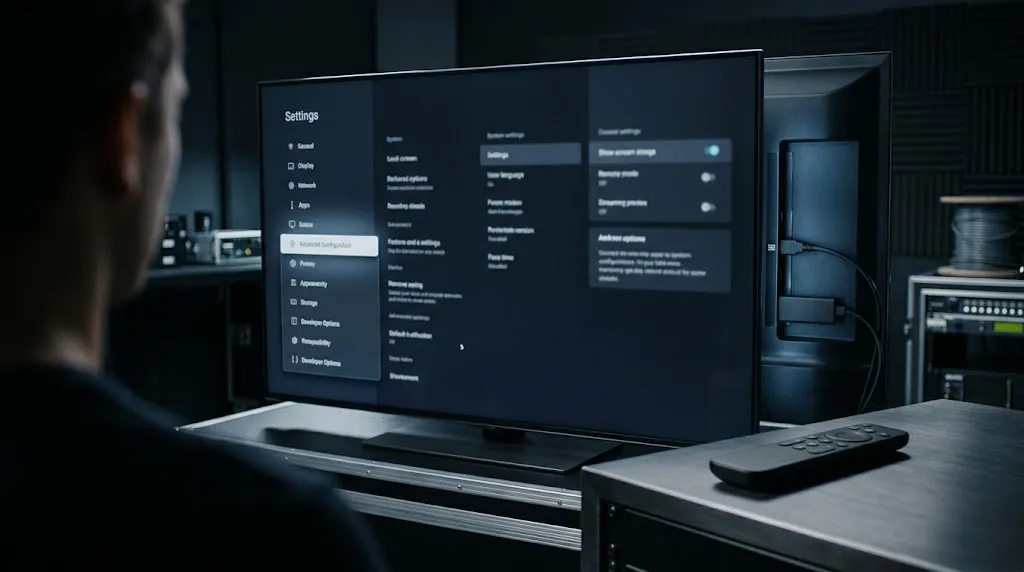
If the player is not in the Amazon Appstore, Fire OS can install it from another source once a setting is turned on. Amazon’s developer documentation for connecting to a Fire TV gives the path: Settings, then My Fire TV (or Device), then Developer Options, then Apps from Unknown Sources.
On recent software, Developer Options may be hidden. AFTVnews documents how to reveal it: on the About page, select the device name about seven times until a message confirms you are already a developer, then go back one screen. On newer versions, the setting may appear as a list of apps allowed to install unknown apps rather than a single switch.
Amazon has said this feature is meant for developers testing their apps, according to PCWorld’s reporting. Turning it on allows installing apps from outside Amazon’s review, so it is worth enabling only for the specific app you need.
Step 3: Get the Player From Its Developer
Once the setting is on, the file still has to come from somewhere, and that is the step where the most confusion enters. Download the player from the address its developer publishes, not from a code in a video or a link from a seller. Our pages on TiviMate and IBO Player, among others, show how to identify a developer’s own sources and why similarly named apps are not the same product.
Step 4: Add the Source and Guide
With the player installed, add the source details your service issued, whether a playlist link, a login with a server address, or a portal. On Fire TV, these are typed with the remote’s on-screen keyboard, so check every character; some players avoid this by showing a code and taking the details on a website instead.
If the service provided a separate guide address, add it as well. The patterns themselves are explained in the IPTV setup guide linked above.
Step 5: Test Before You Rely on It
Open a few channels in different categories, check that the guide fills for the next few hours, and try it at a time the household actually watches. A stick shares the home connection with everything else, so a setup that plays well at noon can behave differently in the evening; how much headroom a Maryland connection needs is covered separately.
Is Amazon Blocking IPTV on Firestick?
Among the questions people search alongside Firestick setup, this one appears in several forms, and the answer has two separate parts.
What Amazon Said in October 2025
AFTVnews reported that an Amazon spokesperson confirmed the company would block apps identified as providing access to pirated content, including apps installed from outside the Amazon Appstore.
According to that report, the program is led by the Alliance for Creativity and Entertainment, an anti-piracy coalition, and was to start in Germany and France before rolling out globally. Later reporting described Fire TV devices refusing to install flagged apps at all, with a message saying the app provides access to unlicensed content.
What That Covers, and What It Doesn’t
The statement concerns apps identified as providing access to pirated content. It is not a statement that Amazon blocks IPTV players as a category. AFTVnews reported that Amazon said sideloading apps that are not piracy apps would remain allowed, and PCWorld reported that neither Amazon nor the coalition disclosed which apps would be blocked or how a piracy app is defined.
Whether a particular source is licensed is a separate question from the player, covered by our legal pages. This site does not name, rank or recommend subscription services, for the reasons set out in our DMCA disclaimer.
Vega Is a Separate Change
Vega OS is a different matter from the blocking program. On Vega sticks, installing apps from outside the store requires a developer account for every app, not only for flagged ones, as Amazon’s Vega documentation sets out. AFTVnews noted that the blocking program mainly affects Fire OS devices for that reason.
A Firestick owner asking whether IPTV still works is therefore asking two questions: whether a specific app is on Amazon’s blocked list, which applies on Fire OS, and whether the stick runs Vega, which determines whether outside apps can be installed at all.
What a Downloader Code Actually Is
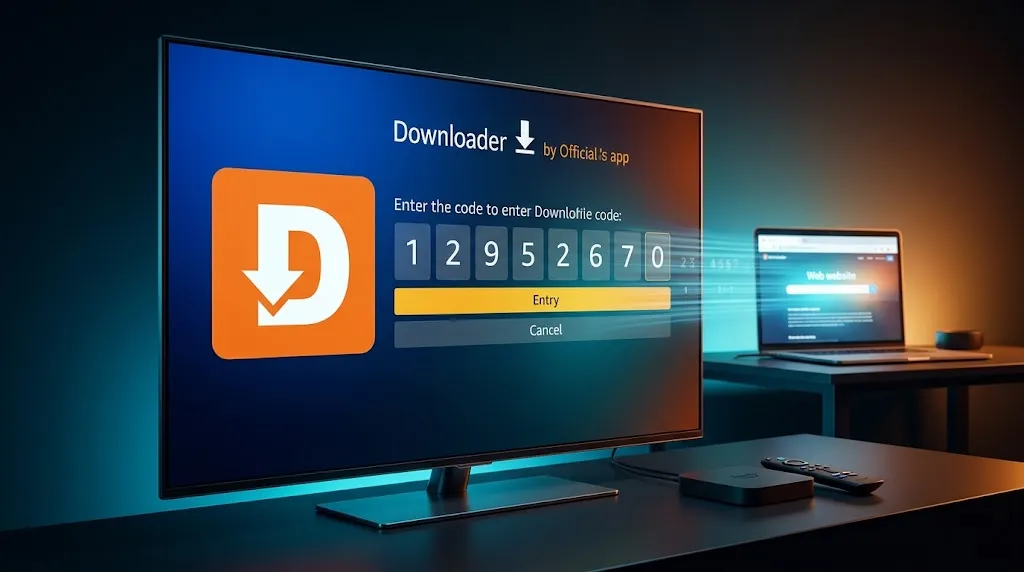
Most of the Firestick setup videos and guides in search results for this topic rely on the same tool: an app called Downloader, and a number to type into it. Understanding what that number is changes how much weight it deserves.
Downloader is published by AFTVnews, and its page describes it as an app that accepts a web address, a search, or a numeric code created by the AFTVnews URL Shortener. The shortener’s own page explains the mechanism: anyone can enter any web address and receive a short number that loads that address in Downloader.
When the developer introduced it, he noted that the codes are permanent and that the shortener is not private, since anyone can try random numbers and reveal valid addresses.
So a code is a shortcut to a web address chosen by whoever created it. It does not identify the developer of the file at that address, and a code shown in a video or on a seller’s page says nothing about who published what it downloads. The question that matters is the same one that applies to any player: whose file is this? Check the address the code leads to against the developer’s own published sources before installing anything.
Conclusion
IPTV setup on Firestick starts with one check that most guides skip: which operating system the model runs. On Vega sticks, only apps published for Vega in the Amazon Appstore install without a developer account. On Fire OS devices, a player can come from the Appstore or, with Apps from Unknown Sources enabled, from its developer, after which the source and guide are added as on any device.
Amazon’s blocking program targets apps identified as providing pirated content, a narrower thing than IPTV players as a whole, and a Downloader code is a shortcut to an address, not a sign of who published the file.
For the three pieces every setup needs on any device, return to our IPTV setup guide. Claims here are checked against primary sources where available, with secondary reporting named where it is the available record, as described on our About page; if Amazon’s documentation or policies change, let us know.
Sources
- Amazon Developer — Device Specifications: Fire TV Streaming Media Player — https://developer.amazon.com/docs/device-specs/device-specifications-fire-tv-streaming-media-player.html (accessed September 2026)
- Amazon Developer — Fire OS Overview — https://developer.amazon.com/docs/fire-tv/fire-os-overview.html (accessed September 2026)
- Amazon Developer — Connect to Fire TV Through ADB — https://developer.amazon.com/docs/fire-tv/connecting-adb-to-device.html (accessed September 2026)
- Amazon Developer — Vega Developer Mode — https://developer.amazon.com/docs/vega/0.24/developer-mode.html (accessed September 2026)
- AFTVnews — Downloader App — https://www.aftvnews.com/downloader/ (accessed September 2026)
- AFTVnews — URL Shortener — https://go.aftvnews.com/ (accessed September 2026)
- AFTVnews — Introducing the AFTVnews URL Shortener for the Downloader App — https://www.aftvnews.com/introducing-the-aftvnews-url-shortener-for-the-downloader-app/ (accessed September 2026)
- AFTVnews — How to find Developer Options on a Fire TV — https://www.aftvnews.com/how-to-find-show-unhide-reveal-developer-options-on-an-amazon-fire-tv-stick-fire-tv-cube-or-fire-tv-smart-tv/ (accessed September 2026)
- AFTVnews — Amazon to start blocking sideloaded piracy apps on Fire TVs (secondary reporting of Amazon’s statement) — https://www.aftvnews.com/amazon-to-start-blocking-sideloaded-piracy-apps-on-fire-tvs/ (accessed September 2026)
- PCWorld — Amazon’s Fire TV piracy crackdown (secondary reporting) — https://www.pcworld.com/article/2963487/amazons-fire-tv-piracy-crackdown-is-a-problem-for-everyone.html (accessed September 2026)
- XDA Developers — Amazon escalates its Fire TV anti-piracy fight (secondary reporting) — https://www.xda-developers.com/amazon-escalates-its-fire-tv-anti-piracy-blocking-installation-shady-apps/ (accessed September 2026)
- PCWorld — The new Fire TV OS is for Amazon, not you (secondary reporting) — https://www.pcworld.com/article/3128166/the-new-fire-tv-os-is-for-amazon-not-you.html (accessed September 2026)
[…] IPTV setup on Firestick […]