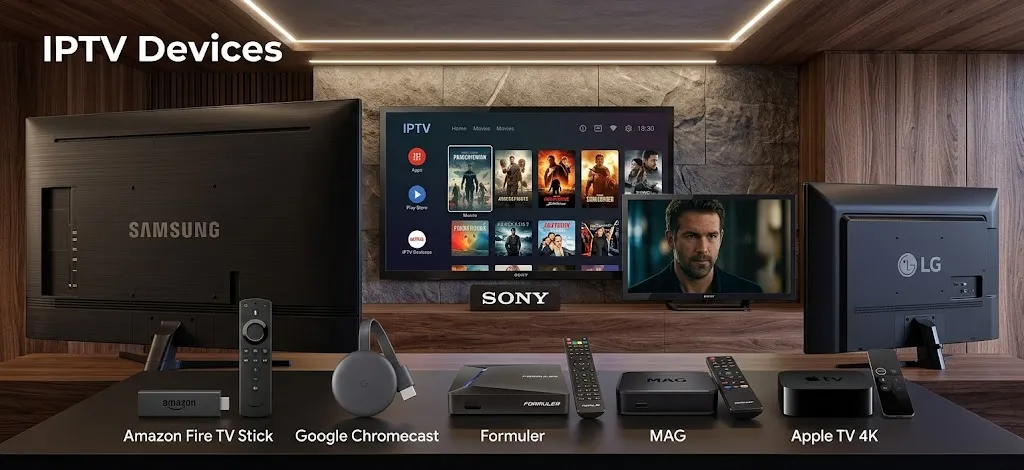

A Maryland household looking at IPTV devices can choose from streaming sticks, Android and Google TV boxes, the smart TV already on the wall, purpose-built set-top boxes and ordinary computers. They all show IPTV on a screen, but they differ in one way that decides almost everything else: where their apps come from.
This page maps the device families, explains that difference for each, and separates a device from a device sold with content, which is not the same thing. For how IPTV itself reaches a home, see how IPTV works in Maryland.
IPTV devices are the hardware that runs an IPTV player: streaming sticks, Android and Google TV boxes, smart TVs, dedicated set-top boxes and computers. What separates them is where their apps come from. Fire TV depends on the model, Google TV, Android TV and Android phones use Google Play, Samsung and LG use their own stores, Apple TV uses the App Store, and portal boxes load a service directly. No device includes channels by itself.
What Makes IPTV Devices Different
Picture quality, remotes and price all vary, but for IPTV one question comes first.
Where the Apps Come From
An IPTV setup needs a player app, and each device family gets its apps from a different place. A player that exists for one platform may not exist for another, so the practical test for any device is whether the player you intend to use is published for it. Developers state their supported platforms on their store listings, as our guide to IPTV apps explains, and those statements differ widely.
That is why two devices with similar hardware can be very different for IPTV. A television that only accepts apps from its maker’s store is limited to the players published there; a device that runs Android apps from Google Play has a wider choice; a portal box needs no player app at all.
A Device Comes Without Channels
Whatever the family, the device itself supplies no channels. A setup needs three pieces, a player, a source and a program guide, and only the first has anything to do with the device. Our IPTV setup guide explains how those pieces connect. Keeping this in mind matters most when a device is advertised together with channels, which is covered at the end of this page.
IPTV Devices by Family
The table below maps each family to its app source and to the page that covers it in more detail. The sections after it give each family the facts that matter for IPTV.
| Device family | System | Where apps come from | Where to go next |
|---|---|---|---|
| Fire TV sticks and TVs | Fire OS (Android-based) or Vega OS, by model | Amazon Appstore; Fire OS can also install outside apps | IPTV setup on Firestick |
| Android TV and Google TV boxes and TVs | Android TV or Google TV | Google Play | IPTV setup guide |
| Android phones and tablets | Android | Google Play | IPTV setup guide |
| Samsung smart TVs | Tizen | Samsung’s app store only | IPTV setup on Samsung Smart TV |
| LG smart TVs | webOS | LG’s app store | IPTV setup guide |
| Apple TV | Apple’s TV system | App Store | IPTV setup guide |
| Portal set-top boxes | Linux-based | No player app; loads a portal from the service | IPTV setup guide |
| Boxes with a built-in IPTV app | The maker’s system | A built-in app from the maker | IPTV setup guide |
| Computers | Windows, macOS, Linux | General or dedicated players | IPTV setup guide |
| Boxes from your internet company | The company’s own | The company’s TV service | IPTV and cable in Maryland |
Fire TV
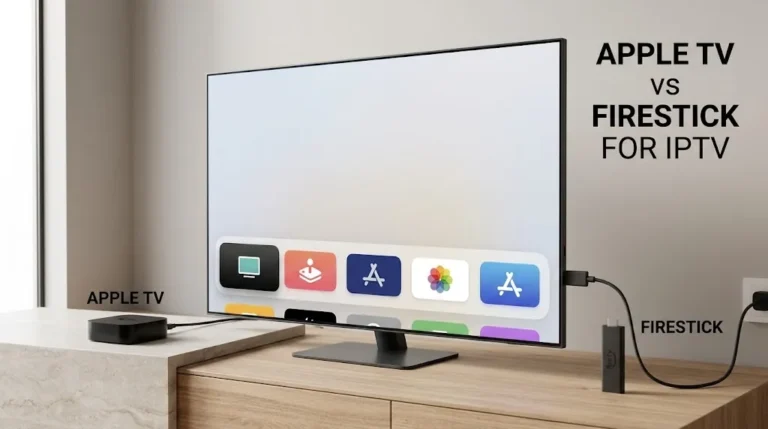
Fire TV now spans two operating systems, and the model decides which one. Amazon’s Fire TV device specifications list the Fire TV Stick 4K Select (2025) and the Fire TV Stick HD (2026) on Vega OS, and describe Fire OS, used by other models including 2026 Fire TV smart TVs, as a fork of Android. On Fire OS, players can come from the Amazon Appstore or, with a setting enabled, from outside it. On Vega, Amazon’s Vega developer documentation ties installing outside apps to a developer account, so the Appstore is the practical route.
Android TV and Google TV: Boxes and Televisions
Android TV and Google TV devices install apps from Google Play, which gives them a wide choice of dedicated IPTV players; several, TiviMate among them, name Android TV as their design target. The family includes standalone boxes and televisions alike. Sony’s support pages, for example, say BRAVIA TVs running Android TV or Google TV install apps from the Google Play Store with a Google account, and that only apps compatible with the TV are shown. Sony also notes that some of its TVs allow only pre-installed apps, so the model still matters.
The family also includes boxes sold under IPTV-focused brands. Infomir’s MAG555, for instance, is listed by its maker as a Google TV streaming media player, which puts it on this path rather than the portal path described below, despite sharing a brand with Infomir’s portal boxes.
Android Phones and Tablets
Android phones and tablets install apps from Google Play, the same store as Android TV, but many IPTV players are built for a television and a remote rather than a touch screen. TiviMate’s developer, for example, says its app is designed for Android TV and is not optimized for touch devices such as phones or tablets, while XCIPTV PLAYER’s listing names Android phones and tablets alongside Android TV.
On a phone or tablet, check that a player’s listing names phones or tablets before relying on it, and remember that the device’s own connection and battery are part of the setup.
Samsung
Samsung’s support documentation states that only apps available in its app store can be installed on its Smart TVs, which run Tizen. A player therefore has to be published for Samsung’s store, and the seller name on the listing is worth checking before installing. Our guide to IPTV setup on Samsung Smart TV covers the steps and what to do when a player is not available there.
LG
LG televisions run webOS, and LG’s developer documentation describes webOS TV apps as web apps, either packaged or hosted, distributed through LG’s own store. As with Samsung, the choice of players is limited to those published for LG’s platform, and a player’s listing for Android or Fire TV says nothing about LG.
Apple TV
Apple TV installs apps from the App Store. Apple’s support page says the Apple TV 4K and Apple TV HD can download apps from the App Store, while the older Apple TV (3rd generation) can only update its built-in apps. Each App Store listing states which Apple devices it supports, and an app for iPhone or iPad is not automatically an Apple TV app, so check that a player’s listing names Apple TV before choosing this device for IPTV.
Portal Boxes and Boxes With a Built-In App
Some set-top boxes are built around IPTV rather than general apps, and they follow two different patterns.
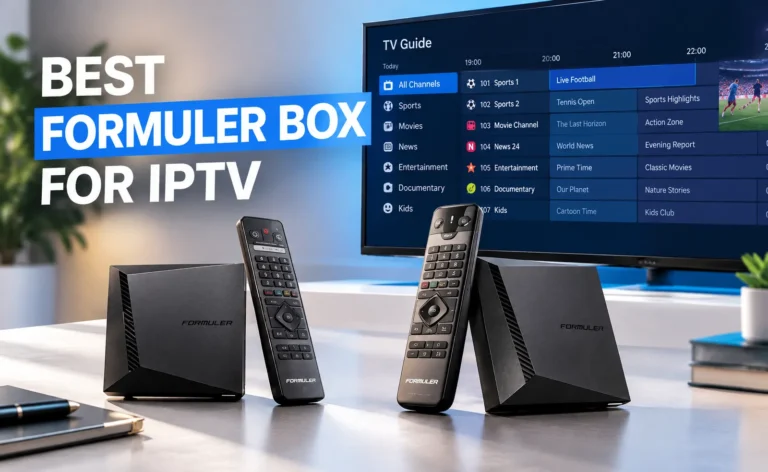
Portal boxes load a service’s portal directly. Infomir describes its MAG line as set-top boxes for operators and lists Linux-based models such as the MAG540 and MAG544. Its documentation says the portal address is entered in the box’s system settings and that the box’s MAC address is assigned at the factory; Formuler’s documentation likewise lists a MAC-based portal as one of its connection types.
Other boxes ship with the maker’s own IPTV app. Formuler’s help desk documents its MYTVOnline app, which accepts portal, login and M3U connections from one menu. The same help desk states that Formuler gives no advice about subscription services and that account details are the user’s responsibility.
Computers
Windows, Mac and Linux computers can run general media players, such as VLC, which VideoLAN documents as opening network streams, as well as dedicated IPTV players where developers publish desktop versions. A general player opens a stream address but offers no channel guide or categories, which is the main practical difference on this platform.
Boxes From Your Internet Company
A box supplied by an internet company is a different kind of device. Verizon ties its Fios TV Home app to a Fios TV package and to at least one installed Fios TV One box or Media Server, for example. These devices exist to deliver that company’s own TV service rather than to run players from app stores, so the comparison that applies is between services, covered in our guide to IPTV and cable in Maryland.
Stick, Box, or Built-In TV

Searches for IPTV stick versus box ask which shape works better. The useful differences are more specific than shape.
A stick plugs directly into a television’s HDMI port; a box sits beside the TV with its own power supply and ports; a built-in smart TV needs neither. What matters for IPTV is not the shape but three details, all of which appear on a manufacturer’s spec sheet: the operating system, which decides where apps come from; the connections, including whether there is an Ethernet port for a wired network connection; and whether the model’s app store carries the player you intend to use.
A wired connection can matter because live streams share the home network with everything else in the house. How much headroom a Maryland connection needs is a separate question, covered in our guide to internet speed for IPTV in Maryland.
A Device Is Not a Subscription
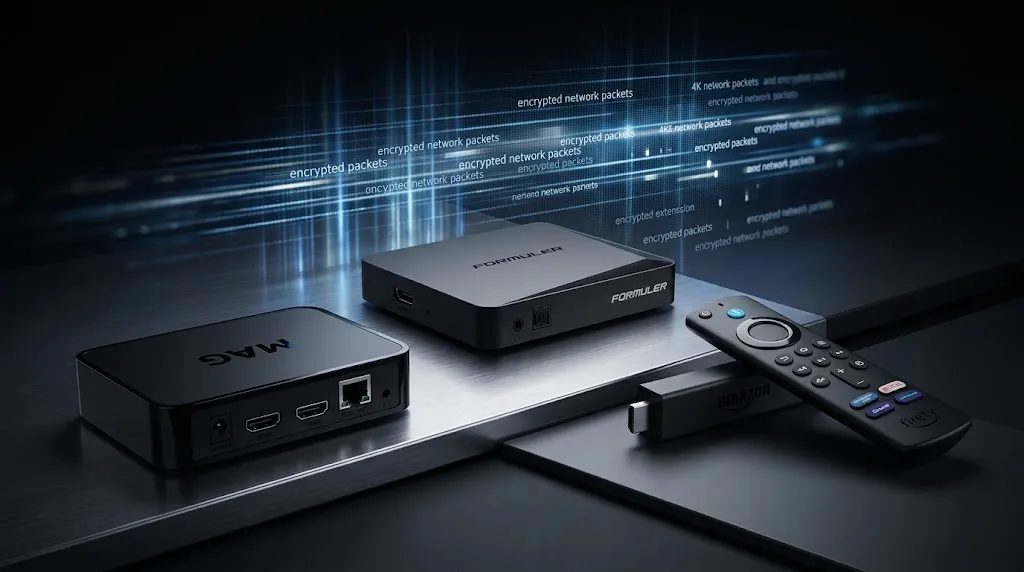
Search results for IPTV devices include listings for boxes described as fully loaded or sold with a subscription. That wording describes something other than a device: hardware bundled with software or access that someone has set up in advance.
The difference has been tested in court. Light Reading reported in 2018 that TickBox, a company accused of selling so-called fully loaded streaming devices that connected users to copyrighted content without authorization, agreed to pay $25 million and stop piracy-related activities to settle a lawsuit brought by the Alliance for Creativity and Entertainment. In 2019, the same outlet reported that a settlement filed in federal court in California required the makers of the Dragon Box to pay a $14.5 million judgment and stop operating their streaming business. In the TickBox case, Streaming Media reported that an earlier court ruling required the company to remove the piracy software from its devices while allowing it to keep selling the devices themselves.
Those cases concerned specific sellers and what they loaded onto the hardware and promoted; they do not make every device sold with apps installed unlawful. Whether a particular source is licensed is a separate legal question. This site does not name, rank or recommend subscription services, for the reasons set out in our DMCA disclaimer.
Conclusion
IPTV devices sort by where their apps come from. Fire TV depends on the model, split between Android-based Fire OS and Vega OS. Android TV and Google TV boxes and televisions use Google Play, as do Android phones and tablets, though many players are built for a TV rather than a touch screen. Samsung and LG televisions are limited to their makers’ stores, Apple TV to the App Store, and portal boxes load a service directly without a player app. Computers run general or dedicated players, and boxes from an internet company deliver that company’s own service. None of them supplies channels, and a device advertised with channels is a device plus something else.
For how the player, source and guide come together on each device, see our IPTV setup guide. Claims here are checked against primary sources where available, with secondary reporting named where it is the available record, as described on our About page; if a manufacturer’s documentation changes, let us know.
Sources
All sources are linked where they are cited above. Sources were checked before publication.
- Amazon: Fire TV device specifications · Vega Developer Mode
- Sony: BRAVIA TV apps
- Samsung: Use apps on your Samsung Smart TV
- LG: webOS TV web app types
- Apple: Download apps on Apple TV
- Infomir: MAG set-top boxes · Choose your MAG · System settings
- Formuler: MYTVOnline portal setup
- VideoLAN: Open Media
- Verizon: Fios TV Home app
- Court cases (secondary reporting): Light Reading on TickBox · Light Reading on Dragon Box · Streaming Media on TickBox and Set TV
[…] This guide walks you through finding your version, installing a player, checking who published it, adding your source, and what webOS won’t run. For the pieces every setup needs, see our IPTV setup guide; for how LG compares with other devices, see our guide to IPTV devices. […]
[…] page is part of the IPTV devices guide and covers one decision: which Fire TV model fits the way you plan to use an IPTV player, and when […]
[…] page is part of the IPTV devices guide and covers one decision: which kind of Android box fits IPTV use, and how to check one before it […]