
Most advice for IPTV not working on Apple TV starts with the same three moves: unplug the box, restart the router, delete the app. Sometimes that works. When it does, you still don’t know what broke, and the same failure tends to come back.
When it doesn’t work, you’ve also wiped the app’s saved login, so you’re now troubleshooting a playlist you have to type in again.
Whether you’re in a Baltimore rowhouse or out in Frederick County, the better approach is the same: run four short tests before you reset anything. Together they tell you whether the fault is in the source, the player app, tvOS or your home connection.
If the problem is on a device other than an Apple TV, start with our general IPTV not working guide.
If IPTV stopped working on your Apple TV, first play the same source on another device. If it fails there too, the Apple TV isn’t the cause, and no reset on the box will fix it. If it plays on the other device, the fault is on the Apple TV side: the player app, a recent tvOS or app update, or the connection the box is using. The tests below tell those apart.
Why Restarting First Often Hides the Cause
A restart clears temporary state in the app, on the box and in the router all at once. If playback comes back, you can’t tell which of those three was at fault, so you can’t tell whether it will happen again.
Deleting the app has a bigger cost. Apple’s guide to deleting apps on Apple TV says deleting removes both the app and its data, and the data may not come back when you reinstall.
With an IPTV player, that data is your playlist URL or Xtream login. Re-typing a long server address on a TV remote is when typing mistakes happen, and then a playback problem turns into a login problem. The same guide describes Offload, which removes the app but keeps its data. That’s the gentler option, and you’ll find it in the reset order at the end of this page.
So hold off on resets until you have test results. They take a few minutes, and each one rules something out for good.
Four Tests That Isolate IPTV Not Working on Apple TV
Run the tests in order and note each result. Each one either clears a part of the chain or points straight at it.
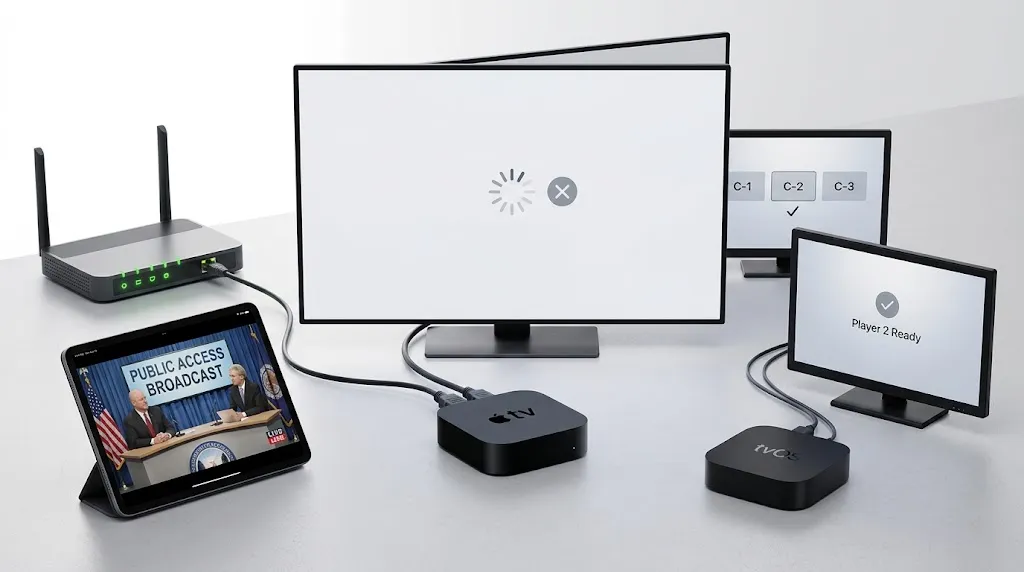
Test 1: Play the Same Source on Another Device
Open the same M3U link or Xtream login on a phone, a laptop or another streaming device, and pick the same channel that failed on the Apple TV.
If it plays: the source works and your home network can reach it. The cause is on the Apple TV side, so go to Test 2.
If it fails: the problem is the source itself, its address or the login. Nothing you change on the Apple TV will help. This is also the most common answer to “why is my IPTV not working anymore” when everything worked last week: the source changed, not the box. To be sure it isn’t your home network, try the second device on mobile data. If it still fails, read the login section below and check with whoever supplied your source.
What it rules out: the source, if it plays; the Apple TV, if it fails.
Test 2: Try a Second Player on the Same Apple TV
Install a second player from the App Store (our IPTV apps for Apple TV page lists ones whose listings name Apple TV) and load the same source into it.
If it plays: the first app is the cause. That points to a recent app update, corrupted app data, or an app version that needs a newer tvOS. The Apple TV–specific causes below cover each one.
If it fails: two different players fail on this Apple TV while the source plays elsewhere. That puts the problem on the box itself or its connection, so go to Tests 3 and 4.
What it rules out: the player app, if the second one fails the same way.
Test 3: Switch to a Different Channel in the Same Source
Go back to your usual player and open three or four other channels from the same source.
If they play: only one stream is down or has moved. That isn’t a device fault. Note the channel and try it again later.
If none play: the problem affects the whole source on this box, which points to the app, tvOS or the connection.
What it rules out: a single dead stream being mistaken for a broken setup.
Test 4: Change How the Apple TV Connects
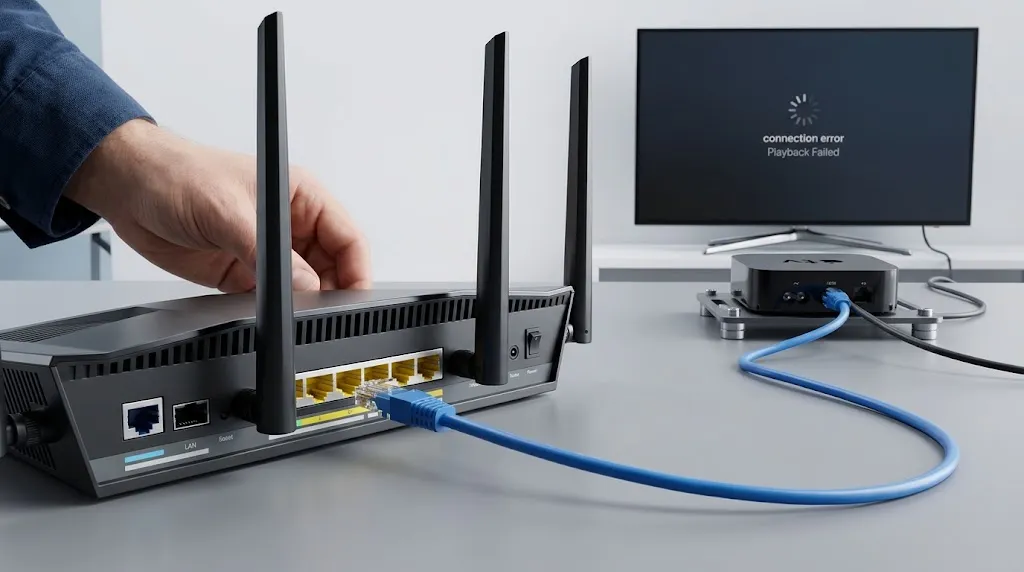
If your Apple TV has an Ethernet port, plug in a cable from the router and try again. If it’s Wi‑Fi only, move it closer to the router for the test, or connect it briefly to another Wi‑Fi network, such as a phone’s personal hotspot. Keep an eye on mobile data use.
If it plays: the box’s usual connection path is the cause, whether that’s weak Wi‑Fi, interference or the router. Our IPTV internet speed guide for Maryland explains how to measure the connection the box actually gets.
If it fails: the connection isn’t the cause. With Tests 1 and 2 passed, that leaves tvOS and the causes below.
What it rules out: your home network path.
Causes Specific to Apple TV
After a tvOS Update
If the failure started right after a system update, check your tvOS version under Settings > General > About. A January 2026 Apple Community thread titled “All IPTV apps failing on tvOS 26” describes this: one user said UHF failed on their Apple TV after tvOS 26 while the same app ran on an iPad and iPhone with iOS 26. That’s one person’s report, not proof of a wider problem.
It does show a check you can make yourself: if the same player and source work on your iPhone but not on the Apple TV, the difference is the device’s software. You can’t fix that from the remote. Check the app’s App Store page for a newer version, and install tvOS updates under Settings > System > Software Updates when they appear.
After a Player Update
Apps change from version to version, and sometimes they remove features. UHF’s App Store version history, for example, records that version 5.2.3 removed its Downloads and Share features.
If what “stopped working” is a feature and not playback, read the app’s version notes before you troubleshoot any further. The feature may have been removed on purpose.
When the Player Needs a Newer tvOS
App Store listings state the minimum system version. UHF requires tvOS 17 or later, and IPTVX requires tvOS 16 or later. If your Apple TV runs an older version, the App Store may not offer the current release of the app.
The Apple TV (3rd generation) has no App Store, so there’s no way to install an IPTV player on it at all. If an older box keeps hitting these limits, our Apple TV vs Firestick for IPTV comparison covers what each platform supports.
Wi‑Fi Only on the 64GB Model
The Apple TV 4K (3rd generation) comes in two versions: a 64GB Wi‑Fi model and a 128GB model with Wi‑Fi and Gigabit Ethernet. On the 64GB model, Test 4 can only change Wi‑Fi conditions, so placement and router distance matter more than they do on the Ethernet model.
Whether IPTV is restricted in the US is a legal question, not a device fault. It’s covered in Is IPTV Legal.
When the Login or Playlist Is Rejected
A login or playlist error is a different failure from buffering or a black screen. The app reached the server, and the server turned the details down. Check the server address character by character, including whether it starts with http or https and whether it ends with a port number. Usernames and passwords are usually case-sensitive. Instead of typing with the remote, you can use an iPhone or iPad signed in to the same Apple Account as a keyboard, which makes long URLs much easier to get right.
If you deleted the app earlier, re-enter the source using the steps in our Apple TV IPTV setup guide. If the same details are rejected on every device in Test 1, they’ve changed at the source, and only whoever supplied them can give you current ones.
Apple’s Own Reset Steps, in the Right Order
Once the tests have narrowed things down, resets become useful, and the order matters. Start with the least destructive step. Apple’s guide to restarting Apple TV gives two methods: open Settings, go to System and select Restart, or unplug the Apple TV, wait five seconds and plug it back in. Restart the router at the same time only if Test 4 pointed at your connection.
If that doesn’t help, install any pending tvOS update, then check the App Store for an update to the player. Next, offload the app, which keeps its data, and reinstall it. Delete the app only if offloading changes nothing. Before you do, have your source details written down, because deleting removes them.
What Your Results Point To
| What you found | Likely cause | Where to go next |
|---|---|---|
| Source fails on every device | Source, address or login changed | Login section above; whoever supplied your source |
| Source plays elsewhere, second app plays on Apple TV | First player app | Player update and tvOS sections above |
| Both apps fail on Apple TV, Ethernet or hotspot fixes it | Home Wi‑Fi or router path | IPTV internet speed guide |
| Both apps fail on Apple TV on any connection | tvOS version or compatibility | tvOS update and minimum-version sections above |
| Only one channel fails | That stream | Retry later |
| App won’t install or update | tvOS below the app’s minimum | Apple TV vs Firestick for IPTV |
| Login or playlist rejected | Details entered or changed | Apple TV setup guide |
Keep a record of your four results. If you contact us or go back to whoever supplied your source, those results answer the first questions anyone will ask. Maryland IPTV doesn’t host or supply streams; see our DMCA disclaimer.