
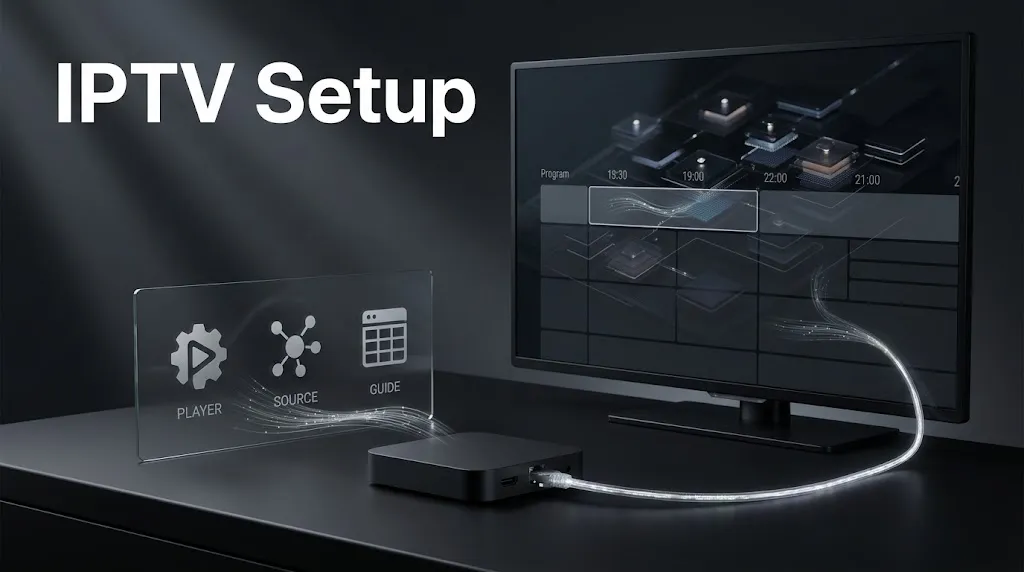

Every IPTV setup in Maryland, whether it runs on a Fire TV Stick in Baltimore or a Samsung TV in Frederick, comes down to the same three pieces: a player, a source, and a program guide. What changes from one device to the next is where each piece comes from and how it gets entered.
This page walks through that workflow stage by stage, explains why the path differs by device family, and marks what IPTV setup does not involve. If the technology itself is new to you, start with how IPTV works in Maryland.
IPTV setup means connecting three pieces: a player app your device supports, the source details your service supplies, and a program guide. Players accept source details in a few common ways: an M3U playlist link, a login with a server address, a portal tied to the device’s MAC address, or a code entered on a website. Each device family installs players differently, which is why the steps differ even though the pieces don’t.
What an IPTV Setup Needs
Before any buttons get pressed, it helps to know what each piece is and who is responsible for it.
Three Pieces From Three Different Places
A player shows the content; it does not include any. The difference between a player, a source and a guide is covered on our IPTV apps page. For setup, what matters is that each piece comes from a different party.
| Piece | Who supplies it | Where it gets entered |
|---|---|---|
| Player app | The app’s developer, through a store or its own site | Installed on the device |
| Source details | The service a household uses | Inside the player, or on a website the player names |
| Program guide | The same service, or a separate address it provides | Loaded with the source in some setups; entered separately in others |
Keeping those three apart explains most setup confusion. An app developer cannot supply channels, a service cannot fix a player that will not install, and a blank guide does not mean the video is broken.
What You Should Have Ready Before Starting
Setup goes faster with a short checklist:
- A device on a platform the player lists as supported
- A player that accepts the kind of source details you have
- The source details themselves, exactly as the service issued them
- A program guide address, if the service gave you one separately
- A working internet connection on the device
A Connection With Room to Spare
A player cannot add capacity a connection does not have, and the connection is shared with everything else in the house. How much headroom a household needs is a separate question, covered in our guide to internet speed for IPTV in Maryland. For setup purposes, the point is simpler: test on the connection you will actually use.
How to Set Up IPTV, Stage by Stage
The order below holds on almost every device. The device-specific part is mostly Stage 1.
Stage 1: Install a Player Your Device Supports
The first decision is not which player looks most appealing but which players are built for your device. Developers declare their supported platforms on their store listings, and those declarations differ. TiviMate’s developer, for example, says the app is designed for Android TV and remote navigation. Our pages on individual players, such as TiviMate, set out what each developer states.
Install from the store your device uses, or from the developer’s own site where the developer documents that route. A player from a mirror site or a renamed listing may not be the developer’s product at all.
Stage 2: Add the Source

This is where setups differ most. Players receive source details in a few common ways, and a given player may support one or several of them.
An M3U playlist link. The service provides a web address that points to a playlist of channels. The player loads the list from it.
A portal address with a user ID and password. The service provides an address and account details, and the player requests the channel list from that server. Formuler’s documentation for its MYTVOnline app calls this the XC API connection and lists a portal address, a user ID and a password.
A portal tied to the device. The service provides a portal address, and access is linked to the device’s MAC address. Infomir’s documentation for its MAG set-top boxes says the portal address is entered manually in the box’s system settings and that the MAC address is assigned at the factory.
A code or identifier entered on a website. The player shows an identifier on screen, and the source is added on a website from a phone or computer. The App Store listing for IBO Player, for instance, directs users to upload their playlist through a website rather than on the TV.
Whichever pattern applies, enter the details exactly as issued. Addresses are easy to mistype with a TV remote, which is exactly what the website pattern avoids.
Show Image Some players take the details on the TV; others show an identifier and take the details on a website.
Stage 3: Check or Add the Program Guide
The on-screen guide is a separate feed of schedule data, commonly in XMLTV format. The Kodi wiki’s page for its IPTV add-on documents the arrangement: an M3U playlist supplies the channels, and a separate XMLTV file supplies the guide.
Whether you need to do anything depends on the pattern. Depending on the player and source, the guide may arrive with the source rather than being entered separately. With an M3U link, some services supply a separate guide address, and Formuler’s documentation lists an EPG address alongside the M3U link for that connection type. If the guide is blank after setup, check whether the service provided a separate guide address before assuming the setup failed.
Stage 4: Test the Setup Before You Rely on It
Before relying on a new setup, check a few channels in different categories, open the guide for the next few hours, and try the setup at a time the household actually watches. A channel that fails while others play points at the source; a player that will not open at all points at the install.
IPTV Setup by Device Family
The three pieces are the same everywhere. What differs is how a player gets onto the device and which source patterns are practical there. Choose a device family below for a quick summary, then read its section.
Fire TV
Fire TV now spans devices on different operating systems, and the model, not the brand, decides which one. Amazon’s developer documentation describes Fire OS as a fork of Android, and its Fire TV device specifications list the Fire TV Stick 4K Select (2025) and the Fire TV Stick HD (2026) as running Vega OS. The same documentation lists 2026 Fire TV smart TVs, such as the Hisense U7, on Fire OS 14. Reporting on Vega, including PCWorld’s, notes that it runs only apps from Amazon’s store and does not support sideloading. The Fire TV instructions reviewed for this page all assume Fire OS, so the first step is checking which system a specific model runs.
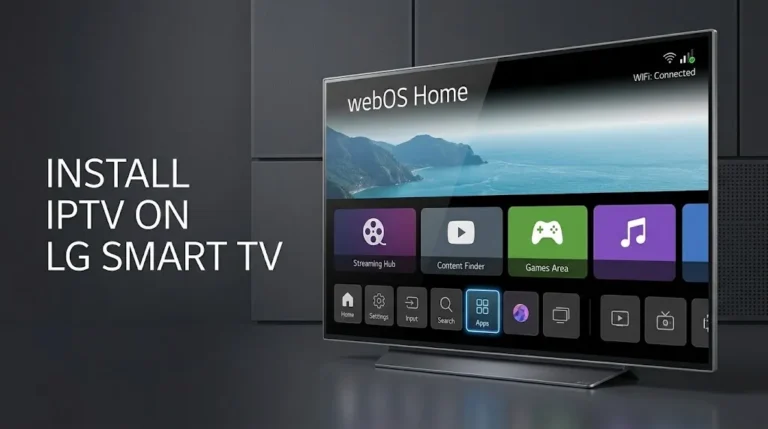
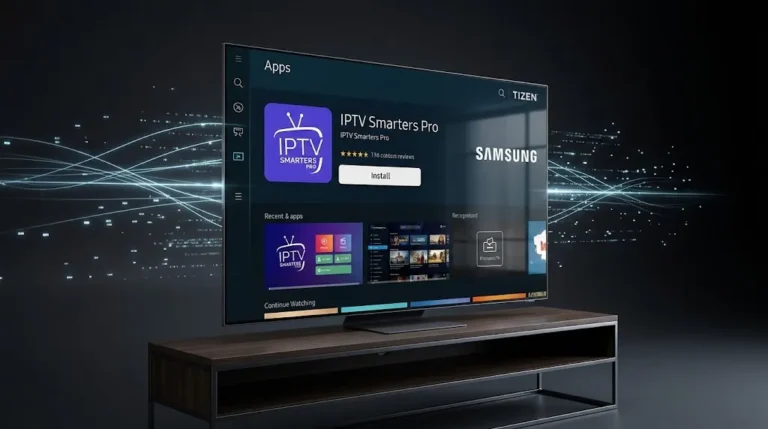
Samsung and LG Smart TVs
Samsung and LG use their own TV operating systems, Tizen and webOS, and their own app stores, so the player-installation path differs from Android TV and Fire TV. Players come from each television’s own store. Typing long addresses on a TV remote is slow, and players such as IBO Player use the website pattern from Stage 2 instead.
Android TV and Google TV
These devices install Android apps, mostly from Google Play, and dedicated players such as TiviMate and XCIPTV PLAYER name Android TV in their store listings. Source details can be entered on the device itself, with the remote doing the typing.
Roku
Roku installs channels from its own Channel Store, and at least two IPTV player channels there, including one named XCIPTV Pro Player, ask users to add the playlist through a website rather than type it on the TV. The setup pattern is therefore closer to the website route described in Stage 2 than to installing a player and logging in on screen.
iPhone, iPad, and Apple TV
Apple devices install players from the App Store, and each listing states which devices it supports. An iPhone or iPad app is not automatically an Apple TV app, so check that the listing names Apple TV before planning to use it on the television.
Computers
On Windows, Mac and Linux, a general media player can open a stream address directly. VideoLAN’s user guide for VLC describes opening a network stream from the Media menu. That works for a single address or a playlist link, but a general player does not offer the channel guide and categories that a dedicated IPTV player does.
Dedicated IPTV Boxes
Some set-top boxes are built for IPTV. Two setups are common. Portal boxes, such as Infomir’s MAG line, load a service’s portal directly, with access tied to the box’s MAC address. Other boxes ship with their own IPTV app: Formuler’s MYTVOnline supports portal, login and M3U connections from one menu. Formuler’s own help desk notes that it gives no advice about subscription services and that portal and account details are the user’s responsibility.
What IPTV Setup Doesn’t Include
Three things carry the IPTV label or sit next to it, but belong outside this workflow.
IPTV Settings in Your Router
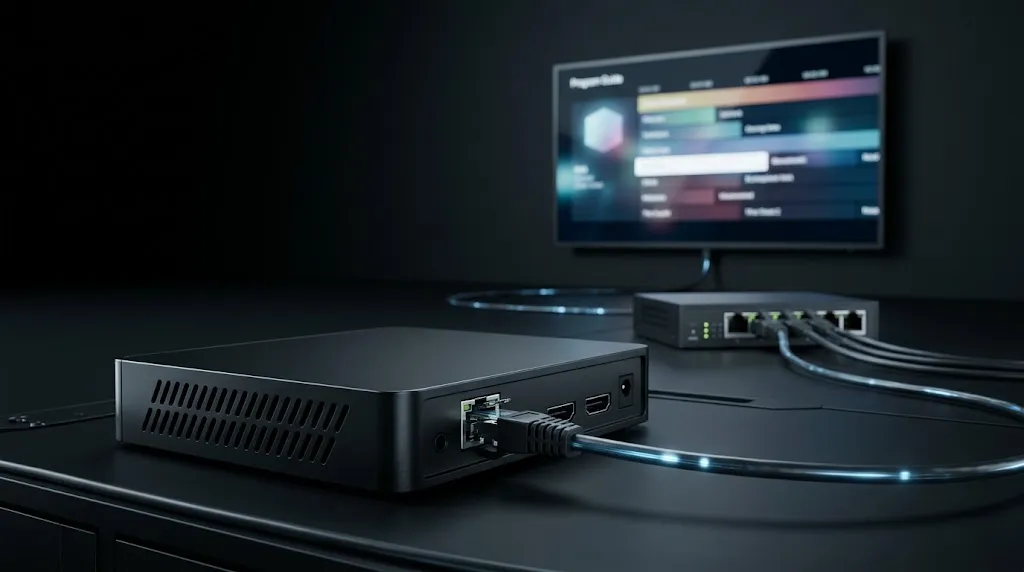
Many routers have a setting labeled IPTV or IPTV/VLAN. It is not for player apps. TP-Link’s documentation explains that the feature lets a mesh system support TV service delivered by a household’s internet company, that the mode must match that company’s requirements, and that if internet and TV already work normally, the default settings should be kept. A player app on a streaming stick needs none of it.
IPTV Apps From Your Internet Company
Apps from Maryland’s internet companies follow a different workflow. Xfinity says customers sign in to its Stream app with an Xfinity ID, and on Samsung and LG TVs it uses a six-digit code entered on an Xfinity web address. Verizon ties its Fios TV Home app to a Fios TV and Internet package and in-home use. There is no playlist to add; the app shows a service the household already has. How that model differs from standalone IPTV is covered in our comparison of IPTV and cable in Maryland.
Player Costs and Source Access Are Separate
A player can carry its own cost, separate from any service. IBO Player’s App Store listing describes a trial followed by paid activation, and TiviMate’s developer says its paid upgrade adds app features only. Paying for a player never adds channels, and paying for a service never pays for the player. Whether a particular source is licensed is a separate question again. This site does not name, rank or recommend subscription services, for the reasons set out in our DMCA disclaimer.
Conclusion
IPTV setup is the same three pieces on every device: a player the device supports, source details from the service, and a guide that may arrive with the source or separately. Stage 1 is where devices differ most, because Fire TV, Samsung and LG, Android TV, Roku, Apple devices, computers and dedicated boxes each install players their own way. Stage 2 is where patterns differ, from playlist links and server logins to portals and website codes. And some things labeled IPTV, such as a router’s IPTV setting or an internet company’s TV app, are not part of this workflow at all.
For the technology behind these steps, see how IPTV works in Maryland, and for how to check a player before installing it, see our guide to IPTV apps. Claims here are checked against primary sources where available, with secondary reporting named where it is the available record, as described on our About page; if a platform or documentation changes, let us know.
Sources
- Amazon Developer — Device Specifications: Fire TV Streaming Media Player — https://developer.amazon.com/docs/device-specs/device-specifications-fire-tv-streaming-media-player.html (accessed September 2026)
- Amazon Developer — Fire OS Overview — https://developer.amazon.com/docs/fire-tv/fire-os-overview.html (accessed September 2026)
- TP-Link — Deco IPTV Setup: How to Configure IPTV/VLAN — https://www.tp-link.com/us/support/faq/2421/ (accessed September 2026)
- Infomir Documentation — External portal loading (MAG set-top boxes) — https://wiki.infomir.eu/eng/set-top-box/stb-linux-webkit/embedded-portal/external-portal-loading (accessed September 2026)
- Infomir Documentation — System Settings (MAG set-top boxes) — https://wiki.infomir.eu/eng/set-top-box/stb-linux-webkit/embedded-portal/system-settings (accessed September 2026)
- Formuler Helpdesk — How to set up portals on MYTVOnline (MAC-ID / XC / M3U) — https://support.formuler.tv/kb/article/63-how-to-set-up-portals-on-mytvonline-mac-id-xc-m3u/ (accessed September 2026)
- Formuler Helpdesk — Content-related questions — https://support.formuler.tv/kb/article/76-how-to-activate-connect-service-what-to-put-portal-url-content-related-questions/ (accessed September 2026)
- VideoLAN Wiki — Documentation: Open Media — https://wiki.videolan.org/Documentation:Open_Media (accessed September 2026)
- Official Kodi Wiki — Add-on: PVR IPTV Simple Client — https://kodi.wiki/view/Add-on:PVR_IPTV_Simple_Client (accessed September 2026)
- Roku Channel Store — XCIPTV Pro Player — https://channelstore.roku.com/details/ea483accf3cda7cf73a10ee9a7f334ea:22aa37a7eb35f505815a00a0fd7718c7/xciptv-pro-player (accessed September 2026)
- Google Play — TiviMate IPTV Player — https://play.google.com/store/apps/details?id=ar.tvplayer.tv (accessed September 2026)
- Apple App Store — IBO PLAYER — https://apps.apple.com/us/app/ibo-player/id1547652240 (accessed September 2026)
- Xfinity — What’s the Xfinity Stream app? — https://www.xfinity.com/support/articles/tv-app-overview (accessed September 2026)
- Verizon — Fios TV Home App FAQs — https://www.verizon.com/support/residential/tv/streaming-device-connection/fios-tv-home-app/ (accessed September 2026)
- PCWorld — The new Fire TV OS is for Amazon, not you (secondary reporting on Vega OS app support) — https://www.pcworld.com/article/3128166/the-new-fire-tv-os-is-for-amazon-not-you.html (accessed September 2026)
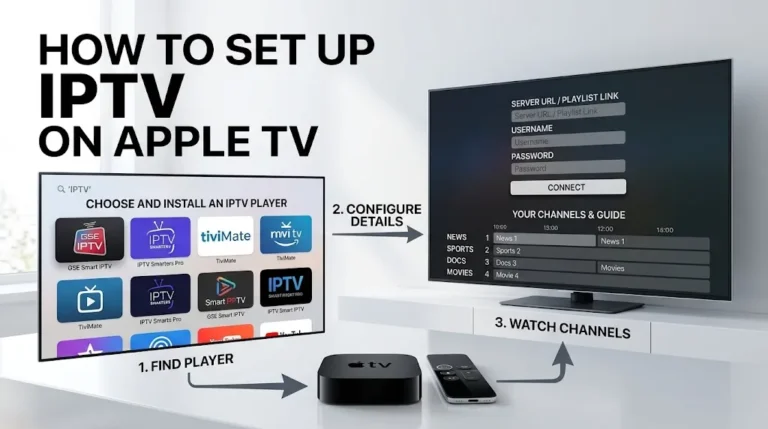
[…] a player, a source and a program guide, and only the first has anything to do with the device. Our IPTV setup guide explains how those pieces connect. Keeping this in mind matters most when a device is advertised […]
[…] it, adding your source, and what webOS won’t run. For the pieces every setup needs, see our IPTV setup guide; for how LG compares with other devices, see our guide to IPTV […]