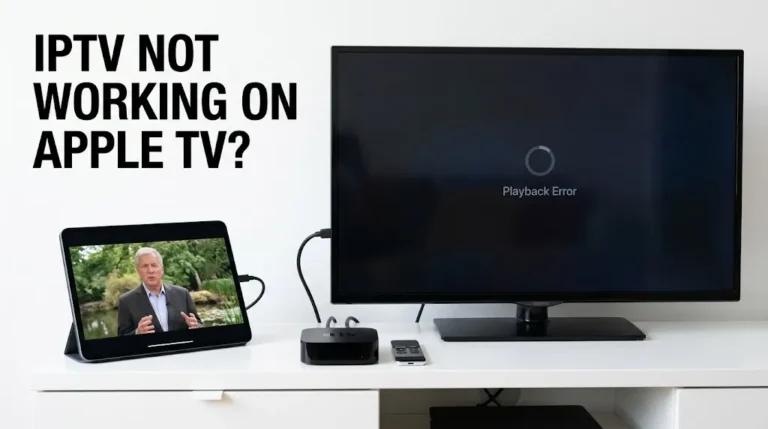
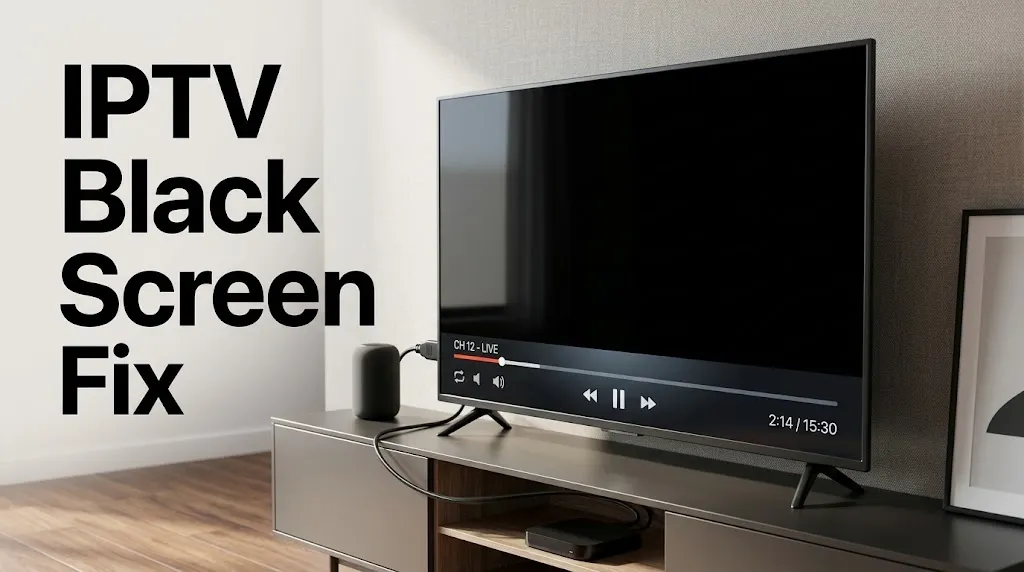

The channel changes, the clock in the corner of the guide keeps ticking, and the picture stays black. The first instinct is a restart and a hopeful wait, but an IPTV black screen fix starts somewhere more useful: with what else the screen and the speakers are doing.
Whether you can hear sound, whether the TV itself shows a message, whether every channel is affected and whether it happens on one device or all of them each narrow the problem in a different direction. This page works through those questions in order.
If nothing at all is working, our guide to IPTV not working is the better starting point.
An IPTV black screen fix starts with the symptom. Sound with a black picture points first to video decoding or the video output path. A “No Signal” message from the TV points to the HDMI connection between device and TV. Every channel black points to the player, the device output or the source, not automatically the account. A brief blackout that returns can be the TV switching modes. One device only points to that device.
The questions below follow the order a diagnosis should take. If you want the short version first, answer these five in order and stop at the first one that applies.
Quick check
1. Does the TV itself show a message such as “No Signal”?
Yes: test a different device on the same HDMI input, or this device on another input. The TV is not receiving a usable signal, so the IPTV app is not part of the question yet. See “Does the TV Say No Signal?” below.
No: go to question 2.
2. Can you hear sound while the picture is black?
Yes: switch the decoder or the built-in player, if your app offers it. Sound means part of the playback path is working, so the video path is where to look. See “Can You Hear Sound?” below.
No: go to question 3.
3. Does the picture come back on its own within a few seconds?
Yes: note whether it happens when a stream starts, stops or switches. A brief blackout can be the TV changing display modes. See “Black for a Few Seconds, Then Back?” below.
No: go to question 4.
4. Is every channel black, or only some?
Only some: try one decoder change, then report the channels to the service. The device and connection work for the other channels. See “Is Every Channel Black, or Just Some?” below.
Every channel: go to question 5.
5. Do other apps on the same device show a picture?
Yes: the IPTV player and its source are the remaining suspects, because the device output and the TV connection are working.
No: test the device’s video output and the TV connection, then the same channel on another device. See “Is It Only One Device?” below.
IPTV Black Screen Fix, Question One: Can You Hear Sound?
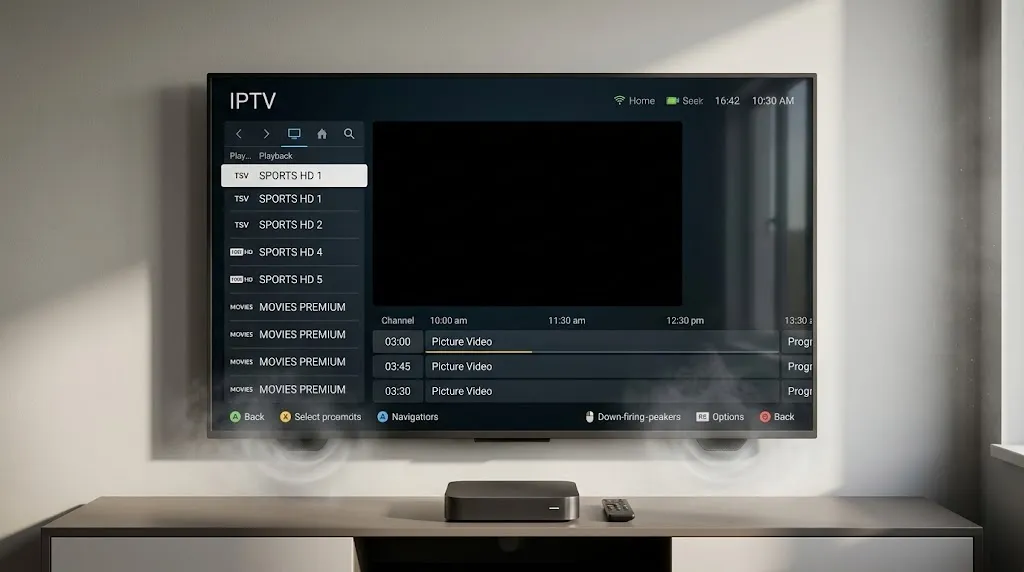
Start here, because the answer splits the problem in two.
If audio plays while the picture stays black, part of the playback path is working. That makes the video decoder and the video output path the first things worth testing. Some players let you choose how video is decoded.
OTT Navigator’s developer documents a choice between hardware and software decoders, and an external player, in its FAQ; XCIPTV PLAYER’s Google Play listing describes two built-in players, ExoPlayer and VLC.
Test: switch the decoder, or the built-in player, if your app offers the option, and play the same channel again.
What it rules out: if the picture returns, the decoder or player setting was involved. If it stays black, move on to the output path and the TV connection.
If there is no sound either, the problem may sit earlier: the stream, the source or the player. Move on to the next questions before changing any decoder setting.
Does the TV Say “No Signal”?
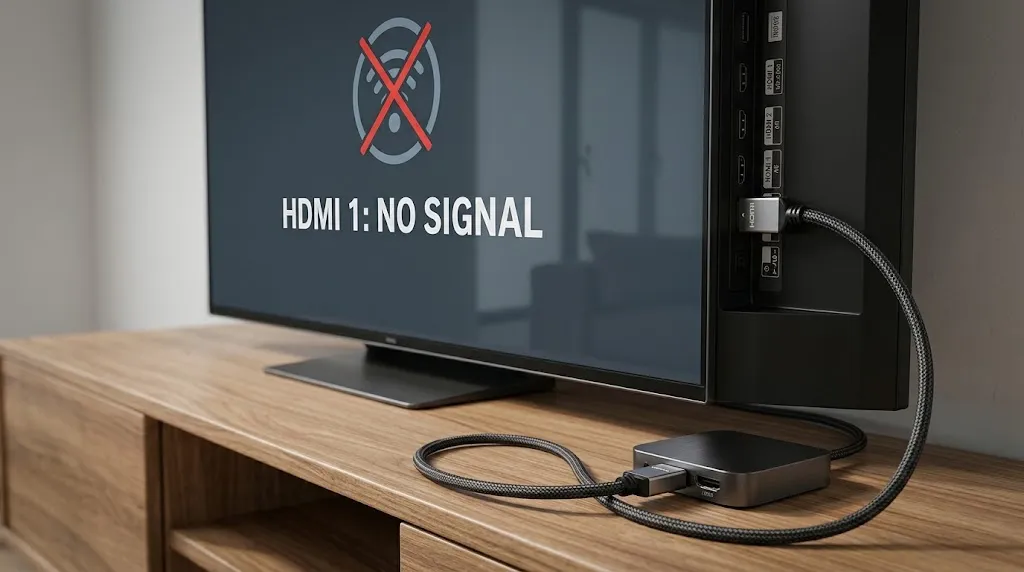
A black screen inside a player and a TV that says “No Signal” are different problems. In the first, the TV is receiving a picture from the device, and the player inside it shows black. In the second, the TV is not receiving a usable signal from the device at all, and the IPTV app is not yet part of the question.
Samsung’s guidance on TV error messages addresses this directly. For “No Signal,” it says to confirm the external device is on, check both the TV’s source and the device’s source, and try a different device on the same source.
For “Mode Not Supported,” it says to set the external device to the highest resolution both the device and the TV support, and adds a useful diagnostic: if the TV works with a second HDMI device at the same resolution, the TV is not the source of the problem.
Test: plug a different device into the same HDMI input, or the same device into a different input.
What it rules out: if the other device shows a picture, the TV and that input are working, and attention moves to the streaming device, its cable and its output settings. If the second device also fails on that input, check the input and the cable before moving back to the IPTV device.
Is Every Channel Black, or Just Some?
If only some channels are black while others play normally on the same device, the device, the connection and the output path have just shown they work. The difference may be in the stream itself, or in a format that one channel uses and others do not. A decoder change, as described above, is still worth one try; after that, the service is the place to report it.
If every channel is black, the picture is less clear. It can still be the player, the device’s video output or the source, so test those before assuming the account itself has a problem.
Test: play a different kind of video on the same device, such as another streaming app.
What it rules out: if other apps show a picture, the device output and the TV connection are working, and the IPTV player or its source is the remaining suspect. If other apps are black too, the output path or the TV connection comes back into focus.
Black for a Few Seconds, Then Back?
A screen that goes black briefly and then recovers can be a different kind of event: the TV changing display modes. Amazon notes on its page about a blank TV screen on Fire TV devices that when you start or stop streaming in 4K Ultra HD, the screen may flicker or turn black for a few seconds.
Some devices and players also offer an option that switches the TV’s mode to match each stream’s frame rate, and where a device offers it, that option is worth testing on and off.
Test: note when the blackout happens. If it lines up with starting, stopping or switching between streams, a display-mode change is one plausible explanation; if it happens mid-program at random, it belongs with the questions above. And if the picture freezes rather than going black, that is buffering, covered in our IPTV buffering fix.
Is It Only One Device?
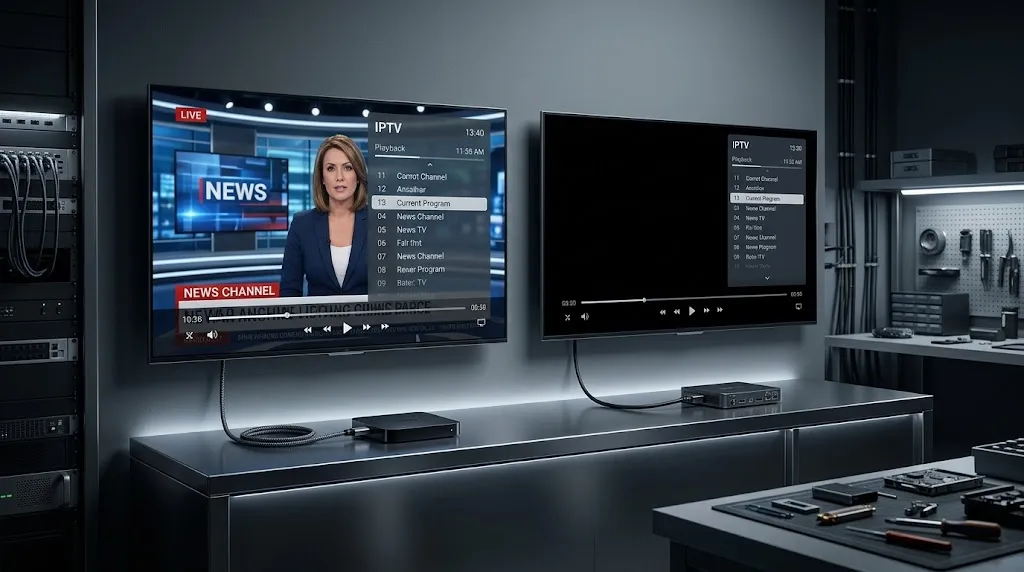
If the same channel shows a picture on one device and stays black on another, the device that fails is where to look. The steps differ by platform.
On a Fire TV
Start with the HDMI path: reconnect the device, check that the TV is on the right input, try another HDMI cable or port, and connect the Fire TV directly to the TV if a receiver or sound bar sits between them. Amazon’s page on a blank TV screen on Fire TV devices also lists restarting the device, turning HDMI-CEC Device Control off and on again, and cycling display resolutions by holding the remote’s Up and Rewind buttons for five seconds.
If the picture works everywhere except inside the IPTV app, clearing that app’s cache, along the path on Amazon’s app data and cache page, is the next test. Fire TV-specific setup questions are covered in our guide to IPTV setup on Firestick.
On a Samsung TV
On a Samsung TV running the app directly, there is no HDMI link to test; the app and the TV are the same device. Samsung’s page on clearing app cache and data gives the path through Device Care, and notes that it varies by model. Clearing data resets the app, so keep any source or login details you may need at hand before doing it. Samsung-specific setup is covered in our guide to IPTV setup on Samsung Smart TV.
What to Check First
An IPTV black screen fix comes down to reading the symptom before changing anything.
| What you see | Test first | If the test works, it rules out |
|---|---|---|
| Sound, black picture | Switch the decoder or built-in player | The HDMI connection and the TV |
| TV says “No Signal” | Another device on the same HDMI input | The TV and that input, if the other device shows a picture |
| Only some channels black | One decoder change, then report to the service | The device and the connection |
| Every channel black, other apps fine | The IPTV player and its source | The device output and the TV connection |
| Black for a few seconds, then back | When it happens: start, stop or switch | A failing stream, if it matches mode changes |
| Only one device affected | That device’s output, cable and app cache | The source and the account |
If none of this fits, or nothing plays at all, return to our guide to IPTV not working. Claims here are checked against primary sources where available, with secondary reporting named where it is the available record, as described on our About page; if a manufacturer’s guidance changes, let us know.
Sources
All sources are linked where they are cited above. Sources were checked before publication.
- Amazon: Fix a Blank TV Screen on Fire TV Devices · Clear App Data and Cache on Fire TV
- Samsung: TV error messages · Clear app cache and data
- Player developers: OTT Navigator FAQ · XCIPTV PLAYER on Google Play