
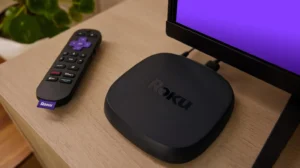
If the TV in your living room already runs Roku, you probably don’t want a new device. You want to know whether the one you have can play your IPTV source.
That question has a real answer, and it isn’t a simple yes. It depends on three things: what Roku’s platform allows, which player apps are in Roku’s store, and what kind of source you were given.
This page goes through all three so you can judge your own Roku before you install anything. If you’re still comparing devices in general, our IPTV devices section covers the wider field.
You can watch IPTV on a Roku if a player app in Roku’s store supports the type of source you have, such as an M3U playlist link or an Xtream Codes login. Roku doesn’t run Android, so Android-only players such as TiviMate can’t be installed. The private “channel codes” once used to add IPTV players stopped working in 2022. Check the player’s store listing against your source before deciding the Roku is the right device.
How Roku OS Differs From Android-Based Devices

Many Android TV boxes and Formuler devices run Android-based software, which is why the same IPTV player can often be installed on both. Fire TV is less uniform. As our Fire TV Stick for IPTV guide explains, some Fire TV models run the Android-based Fire OS, while newer models run Vega OS, so compatibility there depends on the model.
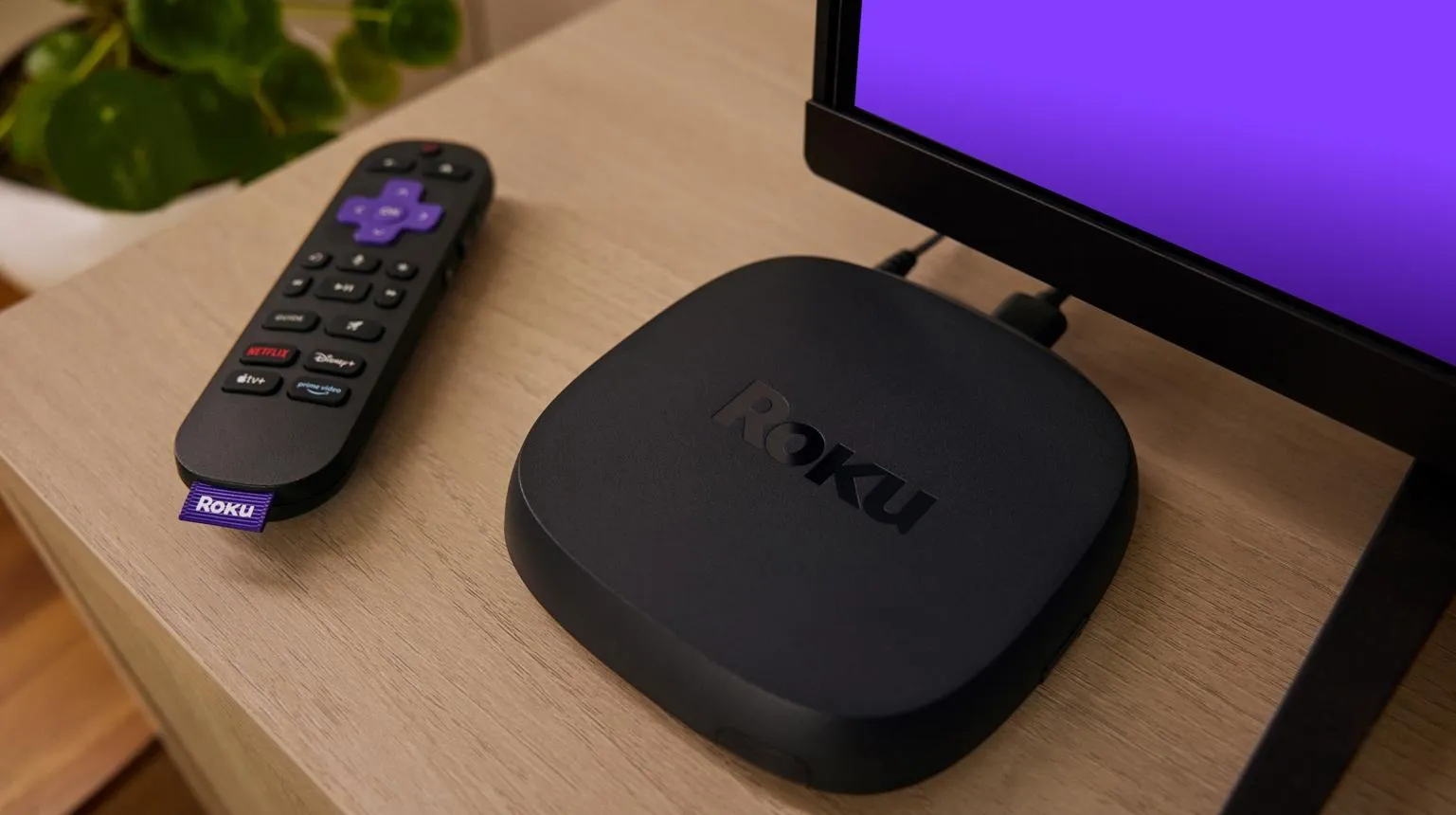
Roku is a separate platform altogether. Roku OS is not Android, so Android apps and APK files don’t install on it in the usual way. This is why TiviMate comes up so often in Roku discussions. Its Google Play listing says TiviMate “is designed for Android TV,” and it isn’t in Roku’s store.
If a guide tells you to install TiviMate or load an Android APK directly onto a Roku, it’s describing a method Roku OS doesn’t support. Using a separate Android-based device plugged into the TV is a different setup.
That isn’t a flaw so much as a design choice. Roku decides what runs on its devices, and in return you get a platform that behaves the same across a wide range of models.
What an IPTV Player From Roku’s Store Can Do
Roku’s store, which Roku’s site calls a store of “apps,” includes IPTV player apps. A player is an app that plays a source you add to it. You enter a playlist link or login, and the player loads the channel list and, if it supports one, a program guide.
Keep this separate from Roku’s own content. Roku advertises “500+ live TV channels” as part of its own offering; those come from Roku, not from an IPTV source you add. An IPTV player supplies the playback, and you supply the source. Many player listings in Roku’s store say this in their description, so read that part of the listing before you install.
An IPTV player app doesn’t automatically provide the channels you want to watch. The app and the content source are separate, so check both what the player supports and that your source is compatible and authorized. That’s true on every device, not just Roku.
We compare individual Roku players on a separate apps page. This page stays with the device question.
Can Roku Play Your IPTV Playlist?
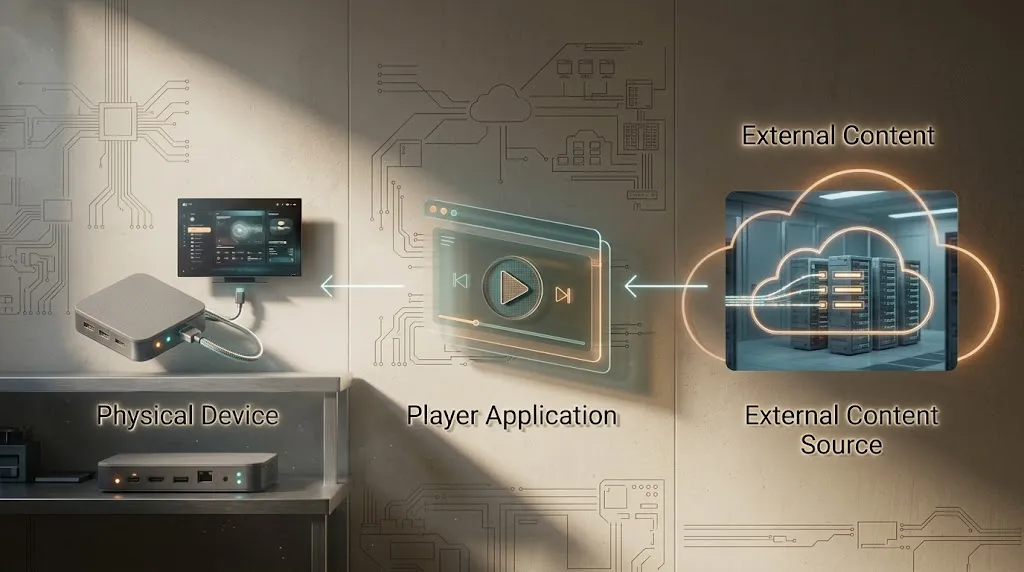
Whether your playlist works on a Roku depends on the player you choose, not on the Roku. IPTV sources usually arrive in one of three forms, and each needs something different from the player.
An M3U or M3U8 playlist link is a single web address that points to a list of channels. A player that supports M3U only needs that one link. Some players also accept a separate EPG (program guide) link.
An Xtream Codes login comes as three pieces: a server address, a username and a password. A player has to support Xtream Codes specifically to use it. Having M3U support isn’t enough.
A MAC or portal login is used by some systems, which pair a portal address with a device’s MAC address. How it works depends on the system behind it, and support depends on the player. A player that handles M3U or Xtream Codes doesn’t necessarily support portal logins, so look for MAC or Stalker portal support named in the listing.
| If you received | The player’s listing should mention |
|---|---|
| A playlist link ending in .m3u or .m3u8 | M3U or M3U8 |
| A server address, username and password | Xtream Codes (sometimes “Xtream API”) |
| A portal address tied to a MAC address | MAC or portal (Stalker) support |
If a listing doesn’t mention your format, treat support as unknown, not as a no. You may still find out by trying it. But don’t build your setup around a player whose listing doesn’t name the source type you have.
What to Check Before Using IPTV on Roku
These checks take a few minutes and answer most compatibility questions before you install anything.
Your Roku’s model and software version. Roku’s software update guide puts it under Settings > System > Software update. That screen shows the current software and build version. Roku says updates download and install automatically in the background, and you can choose Check Now to update manually. Some features, such as AirPlay, depend on the Roku OS version, so this is the first thing to know.
The developer named on the listing. Several Roku players have similar names. The developer name tells you which app you’re looking at, and lets you match it with any instructions you’ve been given.
The source types the listing names. Use the table above. M3U, Xtream Codes and MAC/portal support are separate features.
How you’ll type long addresses. Server addresses and playlist links are long, and typing them with a remote is slow. The Roku mobile app includes a Keyboard control, which Roku’s remote app guide describes as “Tap to open the keyboard on your mobile device.” The app needs your Roku to be connected to the internet to work as a remote.
Wired or wireless. Roku models differ here. The Roku Ultra lists a 10/100 Ethernet port and Wi‑Fi 6. The Roku Streaming Stick 4K lists no Ethernet port; it uses dual-band Wi‑Fi with a long-range Wi‑Fi receiver. If live channels drop out on Wi‑Fi in your house, that difference matters. Our IPTV internet speed guide for Maryland explains what to measure.
What the listing says about content. If the description says the app includes no media, you’ll be adding your own source. If a listing seems to promise channels, read our IPTV scams guide before going further.
Why APK Files and Old Private Channels Don’t Work
APK Files Are Android Apps
An APK is the install file for an Android app. Roku OS isn’t Android, so a Roku has no way to install APK files the way a Fire OS device or an Android box does. Videos that show “IPTV on any Roku” through workarounds usually end up plugging a second, Android-based device into the TV. At that point you’re using that device, and the Roku is just sitting next to it.
Private Channel Codes Ended in 2022
For years, Roku let people add non-certified “private” channels with an access code, and IPTV players were often shared that way. Roku ended non-certified channels. As Cord Cutters News reported, from February 23, 2022, users could no longer install or launch them. That’s the answer to searches for “IPTV Roku private channel” or Roku “codes.” An old code no longer installs anything, and if someone offers you one today as the way to get IPTV on a Roku, keep that cutoff in mind.
What Developer Mode Is For
Roku does have a Developer Mode, and it’s sometimes presented as a backdoor. Roku’s developer documentation describes its purpose as letting you “sideload and test your development apps,” meaning apps you’re building yourself, for testing on your own device. It’s a tool for app development, not a normal way to install a finished IPTV player from elsewhere. And because Roku apps aren’t Android apps, Developer Mode doesn’t open the door to APK files either.
What AirPlay and Screen Mirroring Actually Change
Roku supports two ways of showing another device’s screen or video on the TV. Roku documents them separately, and each has its own requirements.
AirPlay sends video from an iPhone, iPad or Mac. Roku’s AirPlay page lists the supported models by number. Some need Roku OS 9.4 or later and others Roku OS 10.0 or later, and the page states: “Roku Select and Plus Series TVs support Apple AirPlay and HomeKit regardless of Roku OS version.” The Apple device needs iOS 12.3 or later, or macOS 10.14.5 or later.
Screen mirroring shows the screen of an Android phone or a Windows computer. Roku’s screen mirroring page says “most current generation Roku streaming players and Roku TV models support screen mirroring.” It lists exceptions, including the Roku Express model 3700 and Express+ model 3710. Your model number is under Settings > System > About.
Both change where the IPTV player runs. The player runs on the phone, tablet or computer, and the Roku displays what that device sends. How well that works depends on the sending device, the method you use and your home network. Roku itself points to Wi‑Fi problems as a cause of mirroring trouble. It can be a reasonable way to watch occasionally from a player that isn’t on Roku. It isn’t the same as running a player on the Roku itself.
Roku TV vs a Separate Roku Player
A TV with Roku built in and a separate Roku streaming player run the same Roku OS and use the same store. Everything above about players, sources and APK files applies to both.
They differ in hardware, and in what happens if the hardware falls short. Ports and Wi‑Fi vary by model, as the Ultra and Streaming Stick 4K pages show, so check the exact model’s spec page instead of assuming.
A separate player can be replaced or supplemented without touching the TV. With a Roku TV, if the built-in platform doesn’t fit your IPTV setup, the usual answer is to plug another device into a free HDMI port and switch inputs, not to replace the TV.
When Roku Is Enough, and When It Isn’t
A Roku is enough when a player in Roku’s store names your source type, you’re comfortable with that player’s interface, and your connection holds up for live channels. Many people in that position never need another device.
A Roku falls short when your setup depends on a specific Android player, when your source needs a format no Roku player lists, or when you want the freedom to switch players. In those cases, adding a second device is usually simpler than working around the platform.
| If you need | Look at |
|---|---|
| To keep the Roku you already own | A Roku store player whose listing names your source type |
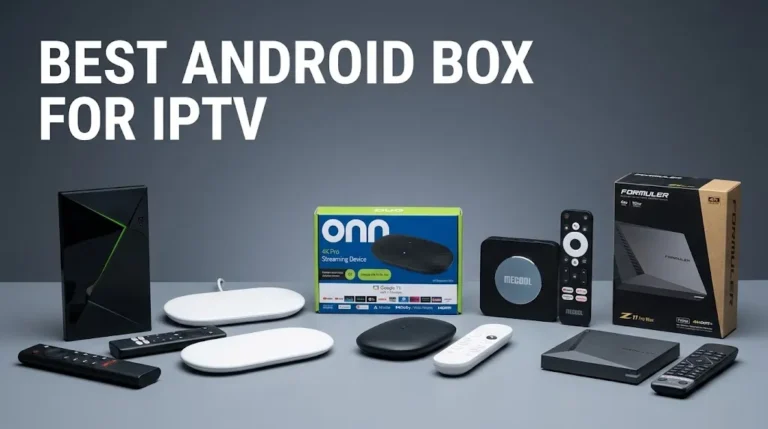
| A specific Android player, such as TiviMate | Fire TV Stick for IPTV (Fire OS models) or our Android box guide |
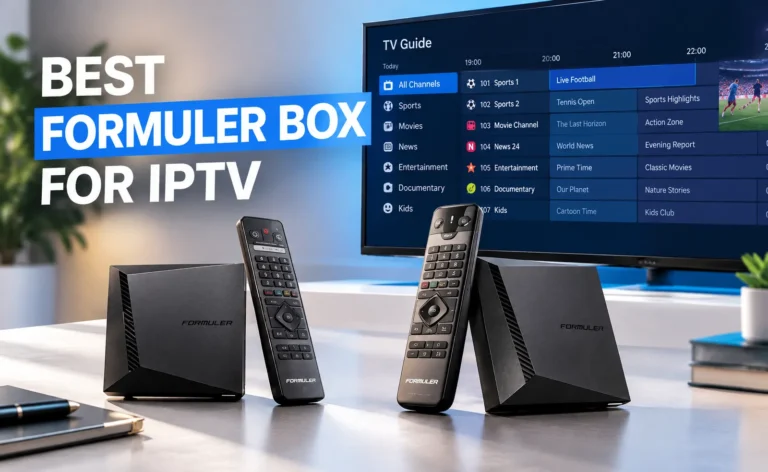
| An IPTV client built into the device | Formuler boxes for IPTV |
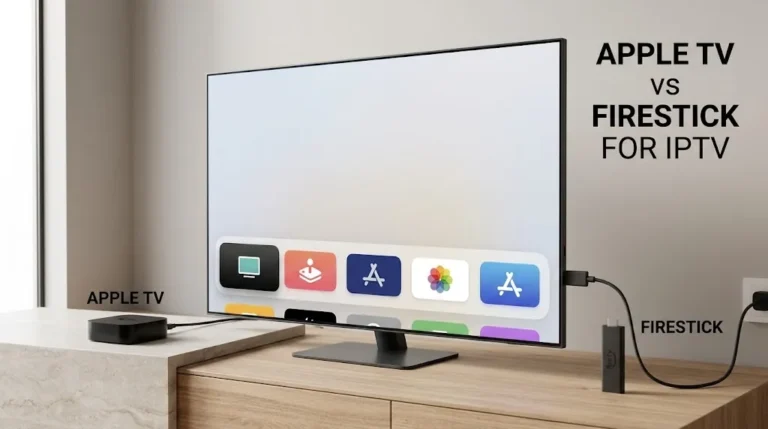
| Apple’s App Store and tvOS | Apple TV vs Firestick for IPTV |
For how players and sources work in general, see our IPTV apps guide. For the legal side of the content itself, see Is IPTV Legal.
The Short Version for Roku Owners
Start with your source type, then look for a Roku store player that names it. If you find one, the Roku you have is a workable IPTV device. If you don’t, no workaround on the Roku itself will change that, and a second device on another HDMI port is the cleaner fix. Maryland IPTV doesn’t sell devices or supply streams; see our DMCA disclaimer.