
When you find IPTV not working in a Maryland home, the first instinct is to try every fix at once: restart the router, reinstall the app, clear everything, search for a new player. Doing everything at once does not tell you what actually broke.
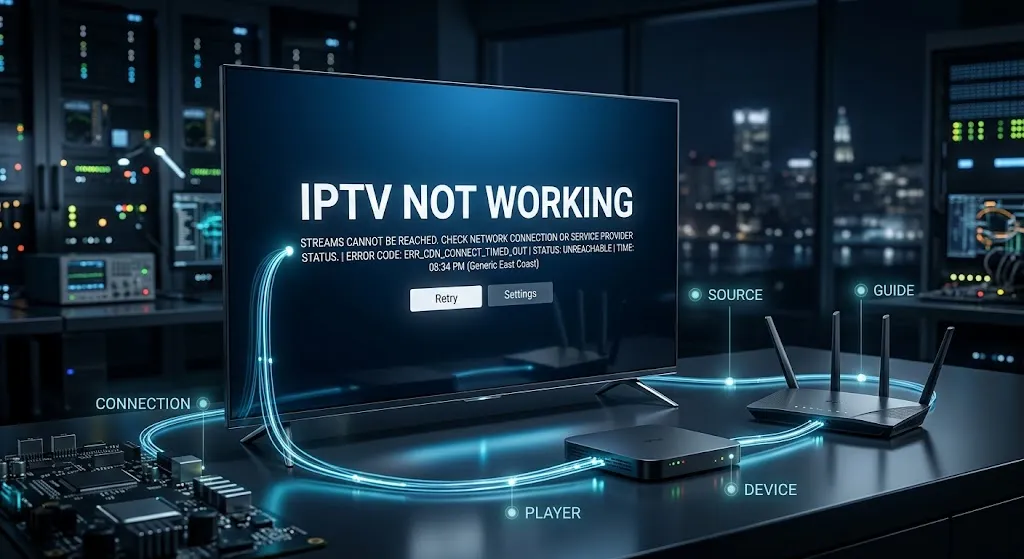
An IPTV setup has a small number of pieces, a connection, a device, a player, a source and a guide, and each kind of failure points to one of them. This page shows how to find which piece failed, what to check for each, which steps are safe on any device, and who to contact when the problem is not yours to fix. For how those pieces fit together in the first place, see our IPTV setup guide.
When IPTV is not working, find which piece failed before trying fixes. If no app streams, check the connection. If other apps work but the IPTV player loads nothing, check the source details and the account with the service. If some channels play and others do not, the problem is in the source. A blank guide is a separate feed. Clearing an app’s cache removes temporary files; clearing its data can erase the source details you entered.
IPTV Not Working? Start by Finding Which Piece Failed
Most troubleshooting guides list fixes. It is faster to start with the symptom, because the symptom can narrow the problem to one piece.
Five Places a Problem Can Sit
| What you see | What it points to | Where to look |
|---|---|---|
| No app on the device streams anything | The connection | The router and home network |
| The player will not install, open or appear | The player or the device | Whether the app is still available for your device |
| Other apps stream, but the player loads nothing | The source details or the account | The details as issued, and the service |
| Some channels play, others do not | The source | The service |
| Channels play, but the guide is empty | The guide feed | The guide address, if one was supplied |
Freezing and black screens can come from more than one of these places, which is why they need the test below before any fix.
The Most Useful Single Test
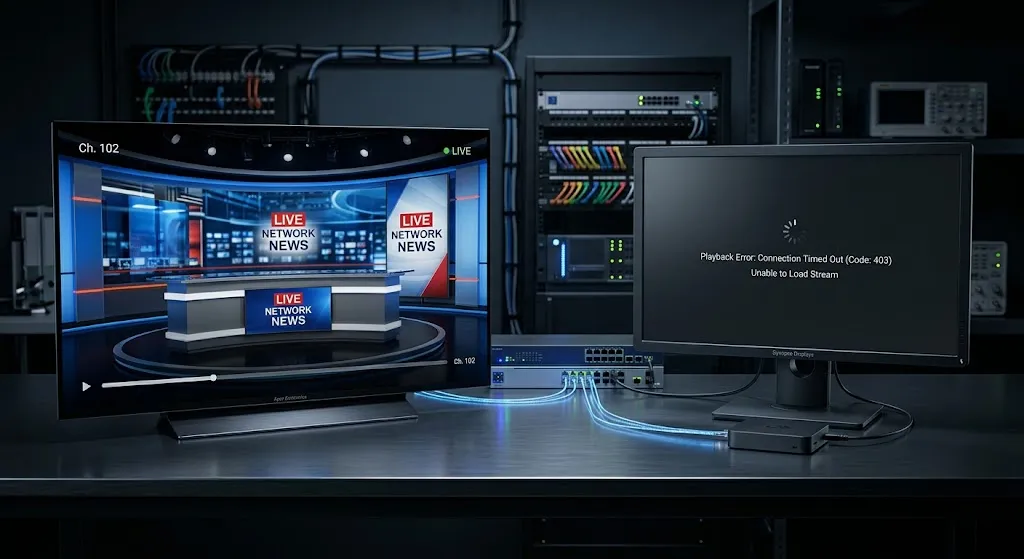
Try the same source somewhere else: on another device, in another player, or on another network. Each version of the test removes one piece from suspicion. If the source plays on a phone but not on the TV, the TV’s player or connection is the difference. If it fails everywhere, the source is the common factor. If it plays on a phone’s mobile data but not on the home network, the network is. This one comparison can settle what repeated restarting does not.
When Nothing Plays at All
A player that shows nothing at all can fail in three different places.
Check the Connection With Another App
Open a different streaming app on the same device. If that fails too, the problem sits before the player: the router, the network or the device’s connection to it. Restart the router and the device, and check the connection on another device in the house. How much headroom a household connection needs for streaming is a separate question, covered in our guide to internet speed for IPTV in Maryland.
Check the Player Is Still Available on Your Device
Sometimes the player itself is the problem, and no setting will fix it. App stores remove apps: TorrentFreak reported that a Madrid court ordered Google to remove IPTV Smarters Pro from Google Play in 2022. On Fire TV, AFTVnews reported that Amazon blocks apps identified as providing access to pirated content, and on Vega OS models only apps from Amazon’s store install without a developer account, as our guide to IPTV setup on Firestick explains. On Samsung televisions, only apps in Samsung’s store can be installed at all, as covered in our guide to IPTV setup on Samsung Smart TV.
If a player has disappeared from a store or will not install on a new device, the question is whether its developer still publishes it for that platform, not what setting has changed.
Check the Source Details and the Account
If other apps stream normally and the player opens but loads nothing, look at the source. Re-enter the details exactly as the service issued them, character by character, since a single wrong character in an address stops everything. Then check whether the account itself is active and unchanged; services can change addresses, and accounts can lapse. Only the service can confirm either.
When Some Channels Work and Others Don’t
When some channels play and others fail on the same device, player and connection, the device, the player and the connection have all just shown they work. What differs between a working channel and a failing one is the stream behind it, which comes from the source. Reinstalling the player or restarting the router does not change the stream behind a channel. The service is the place to report it.
When the Guide Is Blank
The program guide travels separately from the video. The Kodi wiki’s page for its IPTV add-on documents the arrangement: an M3U playlist supplies the channels, and a separate XMLTV file supplies the guide.
So a guide can be blank while every channel plays. If the service provided a separate guide address, check that it was entered; if the guide normally arrives with the source, a blank guide is a question for the service. The IPTV setup guide linked above explains how the guide is added.
When It Plays but Freezes or Goes Black
Freezing and black screens are the symptoms with the most possible causes: the connection during busy hours, the device’s decoding, or the stream itself. The test described above is the way in. If the same channel freezes on every device, the stream is the common factor; if it freezes only on one device, or only on Wi-Fi, the difference points to that device or that connection.
Steps That Apply on Every Device
A few steps are safe to try on any device, in this order.
Restart and Update
Restart the device, then check for updates to both the device’s software and the player app. Google’s help page for fixing playback problems on a Google TV device lists clearing an app’s cache and restarting the device among its steps, and Samsung’s support pages list software updates among the fixes for apps that run poorly.
Clear the Cache, and Know What Clearing Data Does
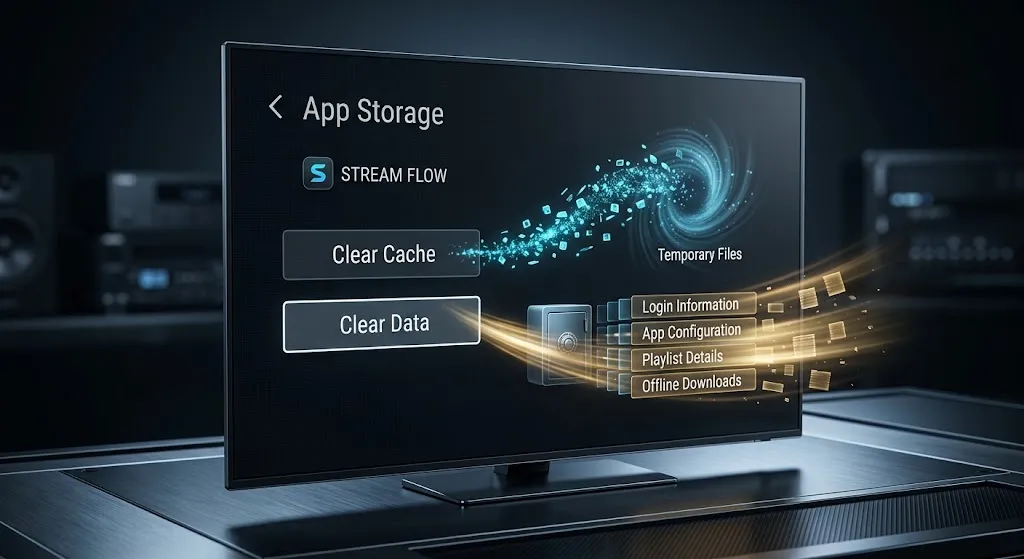
Clearing an app’s cache and clearing its data are two different steps.
Clearing the cache removes temporary files. Google notes, on its page about freeing up storage on Google TV devices, that clearing app cache only removes temporary data and that you remain signed in to your apps. It is the step to try first.
Clearing an app’s data resets it. Amazon’s help page for clearing app data on Fire TV Cube notes that you need to sign into the app again afterward. For an IPTV player, that can mean the playlist, login or portal details you entered are gone. Have the source details your service issued at hand before choosing Clear Data.
Where to find both options depends on the device:
- Fire TV: Settings, then Applications, then Manage Installed Applications, then the app, then Clear Cache or Clear Data, according to Amazon’s help page.
- Google TV: Settings, then Apps, then the app, then Clear cache, according to Google’s help page.
- Samsung: Settings, then All Settings, then Support, then Device Care, then Manage Storage, then the app’s details, according to Samsung’s support page, which notes that the path varies by model.
Who to Contact
Searches for IPTV customer care raise a practical question: which party to contact. A player’s developer publishes software; the channels, the account and the streams belong to the service that issued the source details.
Developers say so themselves: TiviMate’s listing describes the app as a media player that provides no content, and Formuler’s help desk states that portal and account details are the user’s responsibility. Questions about missing channels, an expired account or a changed address go to the service; questions about the app itself, such as a crash on every source, go to the developer.
Conclusion
When you find IPTV not working, the symptom points to the piece that failed. Nothing streaming anywhere points to the connection. A player that will not install or appear points to the player’s availability on that device.
A player that opens but loads nothing, or channels that fail one by one, point to the source and the service. A blank guide is its own feed. The single most useful step is trying the same source on another device, player or network, and the safest general step is clearing the cache, remembering that clearing data can erase the details you entered.
This page does not cover ways around blocks placed by an app store, a platform or an internet company; when an app has been removed or blocked, that is a decision about the app, not a setting to undo.
For how the pieces of a setup fit together, return to our IPTV setup guide. Claims here are checked against primary sources where available, with secondary reporting named where it is the available record, as described on our About page; if a platform’s instructions change, let us know.
Sources
All sources are linked where they are cited above. Accessed September 2026.
- Amazon: Clear App Data and Cache on Fire TV · Clear App Data for Fire TV Cube Apps
- Google: Fix playback problems on Google TV · Free up storage on Google TV devices
- Samsung: Clear app cache and data · Troubleshoot a slow TV app
- Kodi: PVR IPTV Simple Client
- Developers: TiviMate on Google Play · Formuler content-related questions
- Reporting (secondary): TorrentFreak on the 2022 Google Play order · AFTVnews on Amazon’s blocking