
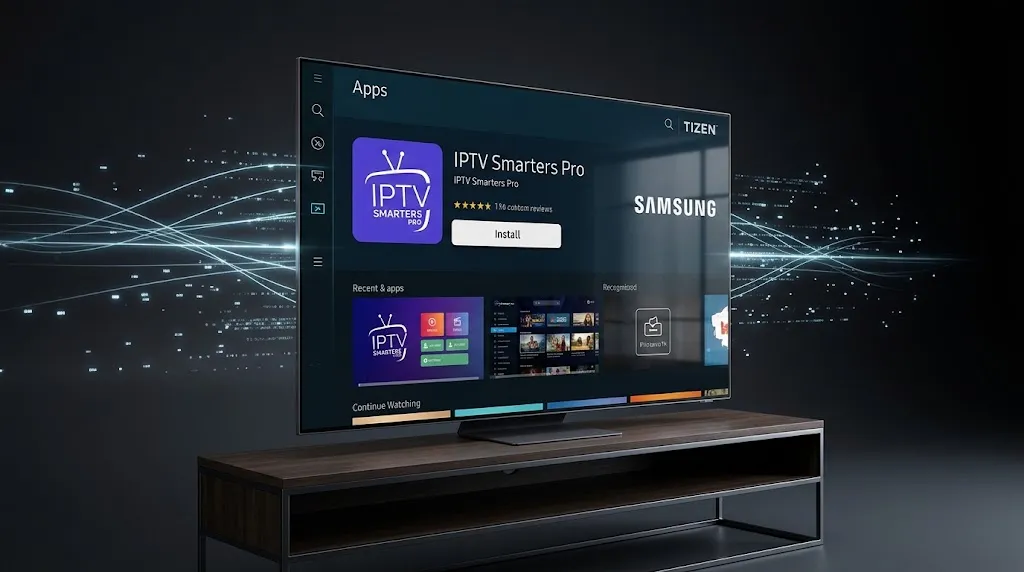

A Samsung Smart TV in a Maryland home can run an IPTV player without any extra box, but not in the way a Fire TV Stick or an Android TV box does. IPTV setup on Samsung Smart TV models starts with one rule set by Samsung itself: apps come only from Samsung’s own store.
This guide covers what that rule means, how the setup runs from installing a player to testing it, and what to do when the player you want is not there. LG televisions use a different operating system and a different app store, so they are not covered here. For the three pieces every setup needs on any device, see our IPTV setup guide.
IPTV setup on a Samsung Smart TV starts in Samsung’s app store, because Samsung says only apps available there can be installed on the TV. Install a player from that store, check the seller name before installing, then add the source details your service issued, either on the TV or through a website the player names. Installing the player adds no channels. If a player is not in Samsung’s store, the alternative is an external device connected by HDMI.
What a Samsung Smart TV Allows You to Install
Everything about IPTV setup on a Samsung TV follows from one line in Samsung’s own documentation.
Only Apps From Samsung’s Store
Samsung’s support page on using apps on a Samsung Smart TV states that only apps available in the App store can be installed on the Smart TV. The same page notes that a Samsung account is required for network-based smart services, including streaming apps.
Samsung describes its Smart TVs as running the Tizen operating system. For IPTV, the practical consequence is simple: whatever player you use on the TV itself has to be one that its developer has published for Samsung’s store.
Why Fire TV and Android Instructions Don’t Apply
The Fire TV and Android TV setup guides reviewed for this page assume an Android-based device: turn on a developer setting, install a file from outside the store, then log in. None of that applies on a Samsung TV. Samsung’s documentation describes its store as the only source of apps for the TV, so steps written for a Fire TV Stick or an Android TV box describe a different kind of device.
That is also why guides that tell Samsung owners to download an app file from a website should be read with care. On a Samsung TV, the store is the route.
How IPTV Setup on Samsung Smart TV Works
The order is the same as on any device: install the player, add the source, add the guide, test. The Samsung-specific parts are how the player is found and how the source details get in.
Step 1: Find the Player in the Apps Store
Samsung’s support page gives the route: open Apps from the TV’s home screen, search for the app, select it, then select Install. Once installed, the app can be added to the home screen from the same Apps menu.
At this point, the player is installed and nothing more. A player shows content from a source you add; it does not include any, so the app will open to an empty screen or a setup prompt until Step 3.
Step 2: Check the Seller Before Installing
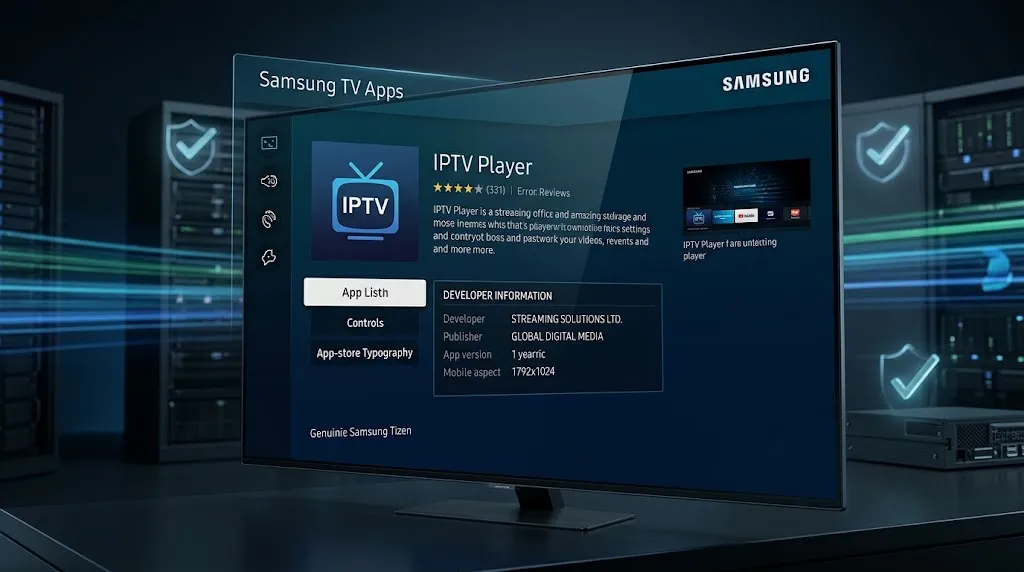
Many IPTV players share similar names, and a Samsung TV’s store is no exception, as the Smarters listings below show. Before selecting Install, read the seller or publisher name on the app’s detail page and compare it with the developer’s own statement.
Some developers say exactly what to look for. The Smarters Pro website asks Samsung users to confirm that the seller shown in the TV’s store is TECH SMARTERS PRIVATE LIMITED before installing; our page on IPTV Smarters explains why that check matters for that name in particular. Where a developer publishes no such statement, the same principle still applies: the seller line identifies the app, not the title.
Step 3: Add the Source, on the TV or Through a Website
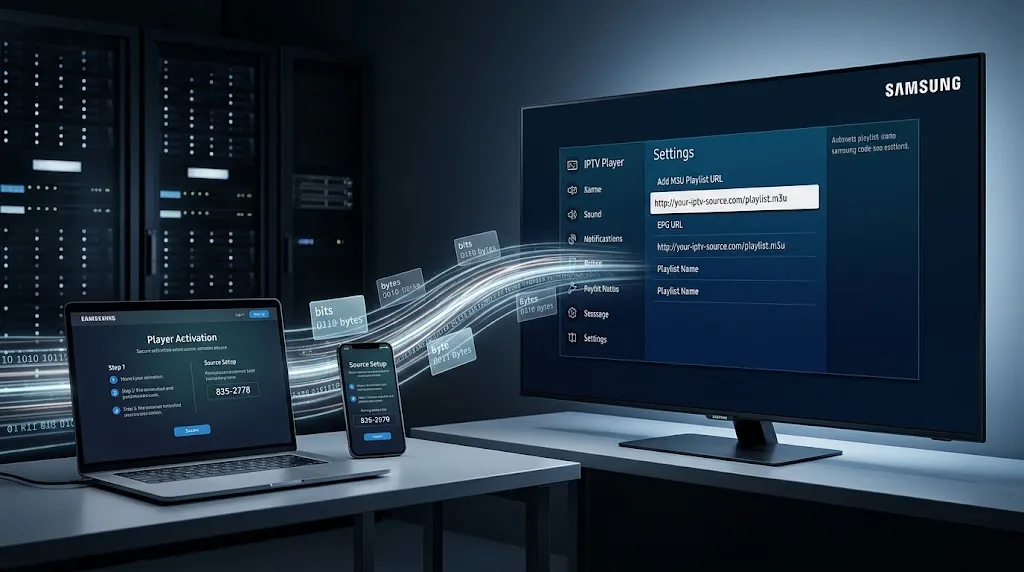
Installing the player and activating a source are two separate steps. The source details come from the service a household uses, in one of a few common forms, such as a playlist link or a login with a server address. The examples covered here use one of two approaches.
On the TV itself. The player shows a form, and the details are typed with the remote’s on-screen keyboard. This works, but long addresses are slow to enter and easy to mistype, so check every character.
Through a website. The player shows an identifier on the TV screen, and the source is added on a website from a phone or computer. IBO Player‘s published app information, for example, directs users to upload their playlist through a website rather than entering it on the TV.
Before entering a device identifier anywhere, confirm that the website belongs to the player’s developer; IBO Player’s operator, for instance, names a single official website and lists other sites using its name as fake.
Show Image Some Samsung players take the details on the TV. Others show an identifier and take the details on a website.
Step 4: Add the Guide and Test
If the service supplied a separate program guide address, add it the same way the source was added. Depending on the player and source, the guide may arrive with the source instead. The IPTV setup guide linked above explains how the guide relates to the source.
Then test: open channels in different categories, check that the guide fills for the next few hours, and try the setup at a time the household actually watches.
When Your Player Isn’t in Samsung’s Store
Not every player has a Samsung version, and not every name in Samsung’s store is the developer you expect.
What the Smarters Developer Says About Samsung
Whether IPTV Smarters is available on a Samsung TV is one of the questions people search around this topic. The developer’s own current instructions list a Samsung TV app and give the seller name to check. Older listings under the original IPTV Smarters name also appear on Samsung’s store, attributed to a different company, WHMCS Smarters. The details are on our IPTV Smarters page.
For other players, the developer’s own site or listing is the place to check. OTT Navigator’s developer, for instance, says in its FAQ that the app runs only on Android and that its developers found Tizen and webOS not powerful enough for it.
Adding a Device Through HDMI
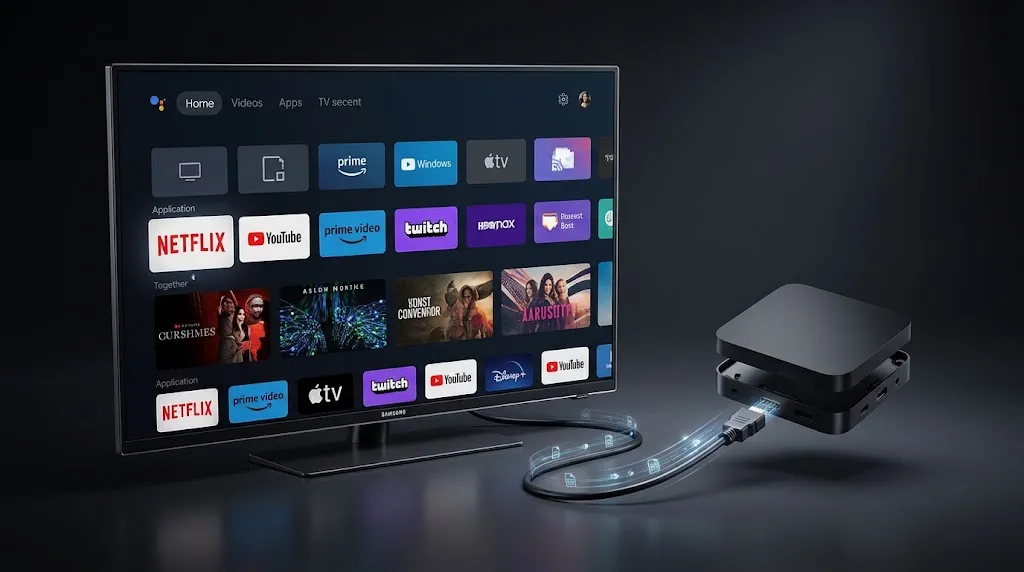
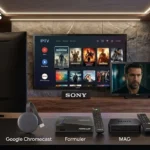
When a player has no Samsung version, the option is not a workaround on the TV but a separate device. An external streaming device plugged into one of the TV’s HDMI ports has its own operating system and its own app store, and the TV simply displays it. OTT Navigator’s developer recommends exactly this for Samsung and LG owners: attaching an Android, Android TV, Google TV or Fire TV device.
That device is not a Samsung product or a Samsung feature, and its setup follows its own rules. A Fire TV Stick, for example, now comes in models on two different operating systems; our guide to IPTV setup on Firestick starts with how to tell which one you have.
Show Image When a player has no Samsung version, the app can live on a separate device plugged into the TV.
Samsung TV Plus Is Not an IPTV Player
For anyone searching for free IPTV on a Samsung TV, the relevant fact is that the TV already includes a free service of its own. Samsung’s support page for Samsung TV Plus describes it as Samsung’s free, ad-supported video service, included with new Samsung TVs and available on 2016 and newer Smart TVs in select areas, with a Samsung account and an internet connection required. Samsung notes that its channels can change without notice.
That makes it a content service built into the TV, not an IPTV player. It is not designed as a player into which you add an M3U playlist, a server login or a portal, and it is separate from the setup described above. It answers a different question: what can this TV show without adding anything? How services like this compare with cable and standalone IPTV is covered in our comparison of IPTV and cable in Maryland.
Whether a particular source added to a player is licensed is a separate question from the player itself. This site does not name, rank or recommend subscription services, for the reasons set out in our DMCA disclaimer.
Conclusion
IPTV setup on Samsung Smart TV models runs through Samsung’s own store: Samsung says only apps available there can be installed. From there, the order is install the player, check the seller, add the source on the TV or through the developer’s website, add the guide if one was supplied separately, and test.
Installing a player never adds channels by itself. When a player has no Samsung version, the answer is an external device on an HDMI port, which follows its own setup rules, and Samsung TV Plus, though free and built in, is a content service rather than a player.
For the three pieces every setup needs on any device, return to our IPTV setup guide. Claims here are checked against primary sources where available, with secondary reporting named where it is the available record, as described on our About page; if Samsung’s documentation or a developer’s instructions change, let us know.
Sources
- Samsung US Support — Use apps on your Samsung Smart TV and projector — https://www.samsung.com/us/support/answer/ANS10005205/ (accessed September 2026)
- Samsung — Samsung TV Apps (Tizen operating system) — https://www.samsung.com/levant/tvs/smart-tv/samsung-tv-apps/ (accessed September 2026)
- Samsung US Support — TV Plus on your Samsung TV, Smart Monitor, or projector — https://www.samsung.com/us/support/answer/ANS00088822/ (accessed September 2026)
- Smarters Pro — official website (Tech Smarters Private Limited) — https://smarterspro.com/ (accessed September 2026)
- Samsung Apps — IPTV Smarters Pro (WHMCS Smarters) — https://www.samsung.com/us/appstore/app/G20264015560 (accessed September 2026)
- Apple App Store — IBO PLAYER — https://apps.apple.com/us/app/ibo-player/id1547652240 (accessed September 2026)
- IBO Player developer notice — https://app.ibo-dev.com/ (accessed September 2026)
- OTT Navigator FAQ (developer documentation) — https://ottnav.github.io/faq.html (accessed September 2026)
- LG webOS TV Developer — Web App Types — https://webostv.developer.lge.com/develop/getting-started/web-app-types (accessed September 2026)
[…] IPTV setup on Samsung Smart TV […]