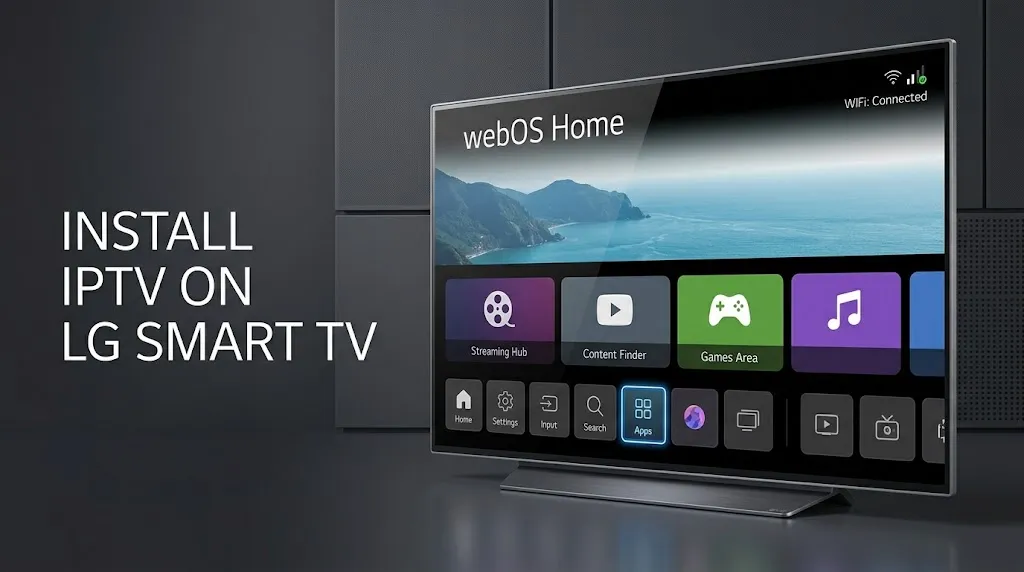

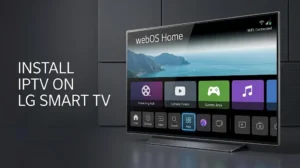
Press Home on your LG remote and look at the bar along the bottom of the screen. If you see Apps, your TV runs a recent version of webOS. If you see LG Content Store, it runs an older one. That one detail decides the steps you follow to install IPTV on LG Smart TV models, so start there.
This guide walks you through finding your version, installing a player, checking who published it, adding your source, and what webOS won’t run. For the pieces every setup needs, see our IPTV setup guide; for how LG compares with other devices, see our guide to IPTV devices.
To install IPTV on LG Smart TV models, use LG’s own app store. On webOS 22 and later, press Home, open Apps, search for the player and select Install; on older versions, start from LG Content Store. Check the publisher before installing, then add the source your service issued. Android apps and APK files are not the normal format for LG webOS TVs. LG Channels is free TV built into the set, not an IPTV player.
Check Your webOS Version First
Your steps depend on your version, so find it before anything else.
- Pick up your LG remote.
- Press Mute three times.
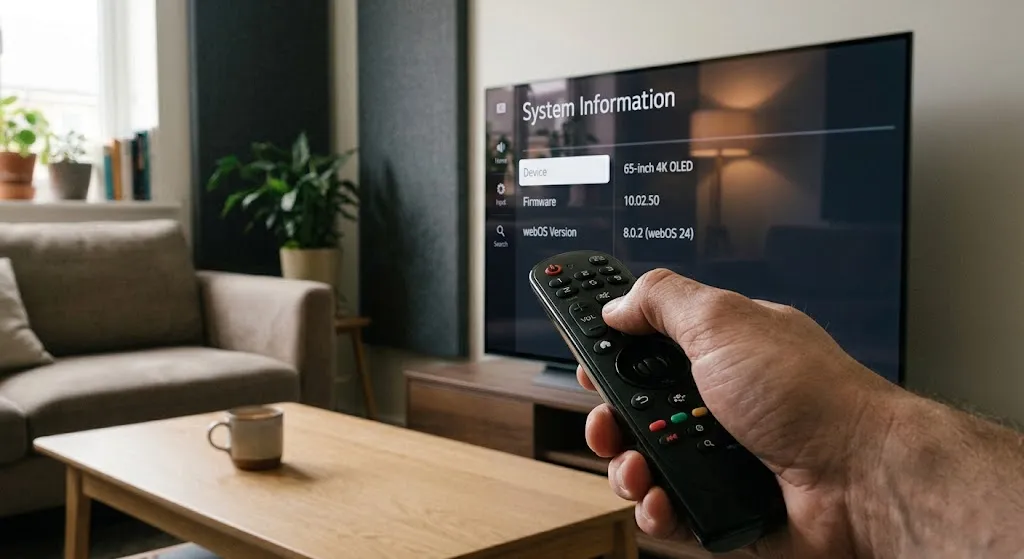
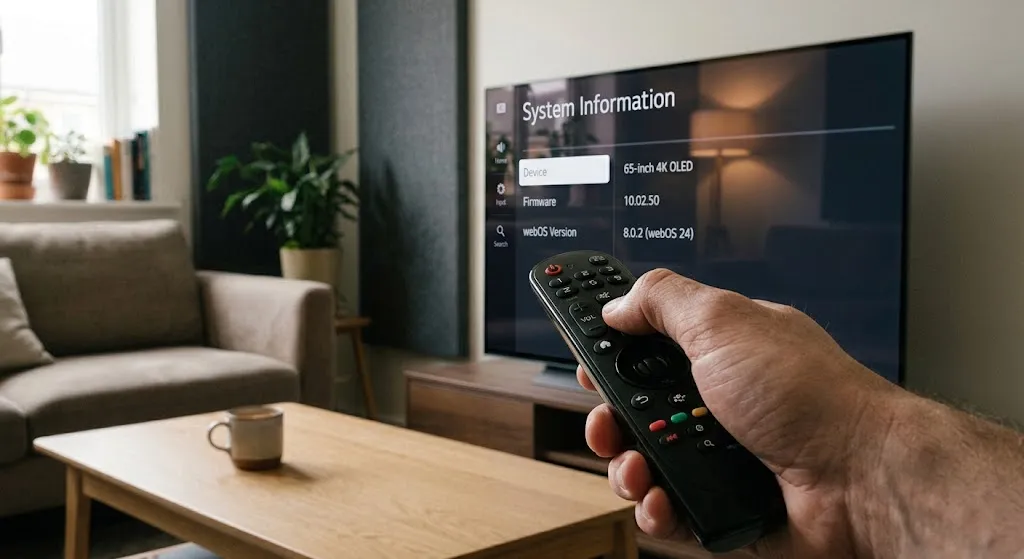
LG’s support pages say you can identify your TV’s webOS version by pressing the Mute button on the remote three times. LG’s help page on installing apps lists this as the way to find it.
What you should see: a panel with your TV’s details, including its webOS version. Note the number, then close the panel.
Install IPTV on LG Smart TV From the App Store
LG TVs install apps from LG’s own store. The path depends on your version.
On webOS 22 and later:
- Press Home.
- Select Apps.
- Select the search icon in the top-right corner.
- Type the name of the player you want.
- Select it, then select Install.
On webOS 5.0 and earlier:
- Press Home.
- Select LG Content Store.
- Select the search icon, type the player’s name, then select Install.
On webOS 22 and later, press Home, select Apps, choose the search icon, find the app and select Install. On webOS 5.0 and earlier, the same steps start from LG Content Store instead of Apps. LG notes that app installation may be limited on models released before 2015, according to its guide to downloading and installing apps.
What you should see: a Launch button when the install finishes.
Can’t find the player? LG says unsupported apps do not appear in its store. If a search comes up empty, LG does not list the app as available for your TV in that store.
Check the Seller Before You Install
Before you select Install, open the app’s detail page and read the publisher name. Several IPTV players have look-alike names.
The official Smarters Pro website does not currently identify its LG version as available, while LG’s store can show listings with similar names. Check the publisher shown by LG before treating an app as the official one. The Smarters Pro site lists its supported platforms, and our page on IPTV Smarters explains why the name alone does not identify the developer.
What you should see: a publisher name on the detail page that matches the developer’s own website. If it doesn’t, don’t install.
Add Your IPTV Source and Electronic Program Guide
A player shows content. It does not include any. Your channels come from the IPTV source your service issued, and our guide to IPTV apps explains why the two are separate.
Players on LG TVs take the source in one of two ways. Open your player and see which one it offers.
Option 1: Sign In on the TV
- Open the player.
- Choose its option to add a source or sign in. The wording depends on the player.
- Enter the details exactly as your service issued them, using the remote’s on-screen keyboard.
What you should see: the player loading a channel list.
Option 2: Activate With a Code on a Website
- Open the player.
- Write down the code or device address it shows on the screen. Some players show a MAC address or a device key.
- On a phone or computer, open the website the player names. Check that it belongs to the player’s developer before you type anything.
- Enter the code and your source details there.
- Restart the player on the TV.
What you should see: your channels in the player after the restart.
Add the Guide
If your service gave you a separate electronic program guide (EPG) address, add it the same way you added the source.
What you should see: guide data next to the channels. If the guide stays empty, check whether your service supplied a separate EPG address. Our IPTV setup guide covers the common source formats.
Know What webOS Won’t Run
LG TVs run webOS, not Android. That rules out some apps you may have read about.
APK Files
An APK is an Android app package. LG’s developer documentation describes webOS TV apps as web apps, either packaged or hosted. That means an Android APK is not the normal app-installation format for an LG webOS TV.
TiviMate
TiviMate’s developer lists the app for Android TV, while LG webOS uses its own web-based app platform. The TiviMate listing on Google Play describes it as designed for Android TV.
LG’s Developer Mode
LG’s developer documentation describes its Developer Mode app as a tool to install, debug and test webOS TV apps, which requires an LG Developer site account and a PC. It is built for app developers, not as a way to add an IPTV player.
An Android Device Through HDMI
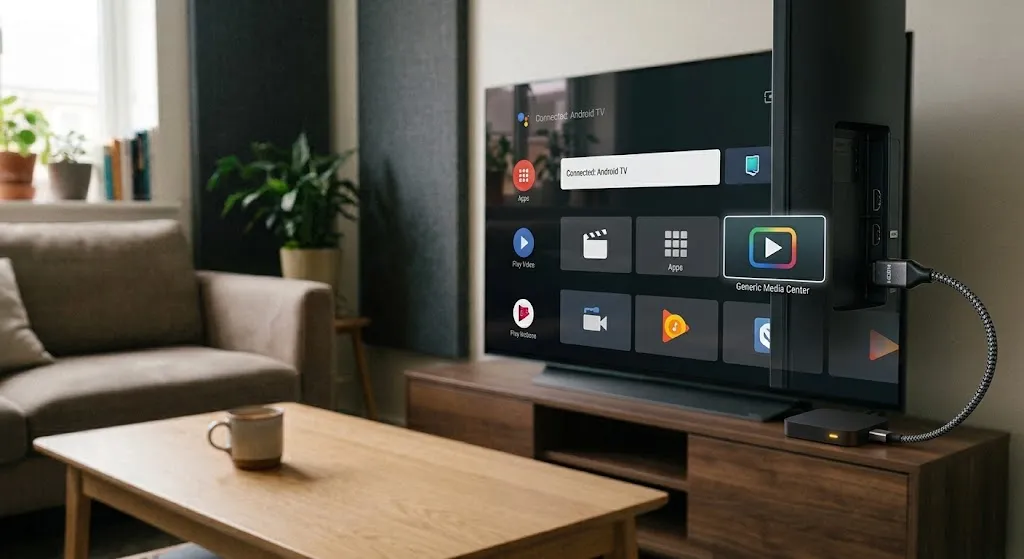
Want a player that only exists for Android? Plug an Android device into one of the TV’s HDMI ports. That device runs its own system and its own app store, and the LG TV simply displays it. Fire TV devices now come in two systems, so check yours first with our guide to IPTV setup on Firestick.
LG and Samsung, Side by Side
LG and Samsung use their own TV app ecosystems. Here is how the two compare.
| LG | Samsung | |
|---|---|---|
| System | webOS | Tizen |
| Where apps come from | LG’s app store (Apps or LG Content Store) | Samsung’s app store only |
| How you install | Depends on your webOS version | Apps, then search, then Install |
| Free TV built in | LG Channels | Samsung TV Plus |
For the Samsung steps, see our guide to IPTV setup on Samsung Smart TV.
Fix an IPTV App That Stops Working
Player crashing, freezing or not opening? LG’s guide to apps that freeze, crash or won’t load gives this order:
- Check the TV’s internet connection.
- Update the app to the latest version.
- If the problem continues, delete the app and install it again. To delete, highlight the app on the Home screen and press and hold OK.
LG’s app troubleshooting page adds two points. Update the TV’s software, because an app update can outpace old firmware: on webOS 5.0 and later, go to Settings › All Settings › Support › Software Update. And have your login details at hand before reinstalling, because you will need to sign in again. For an IPTV player, that means your source details.
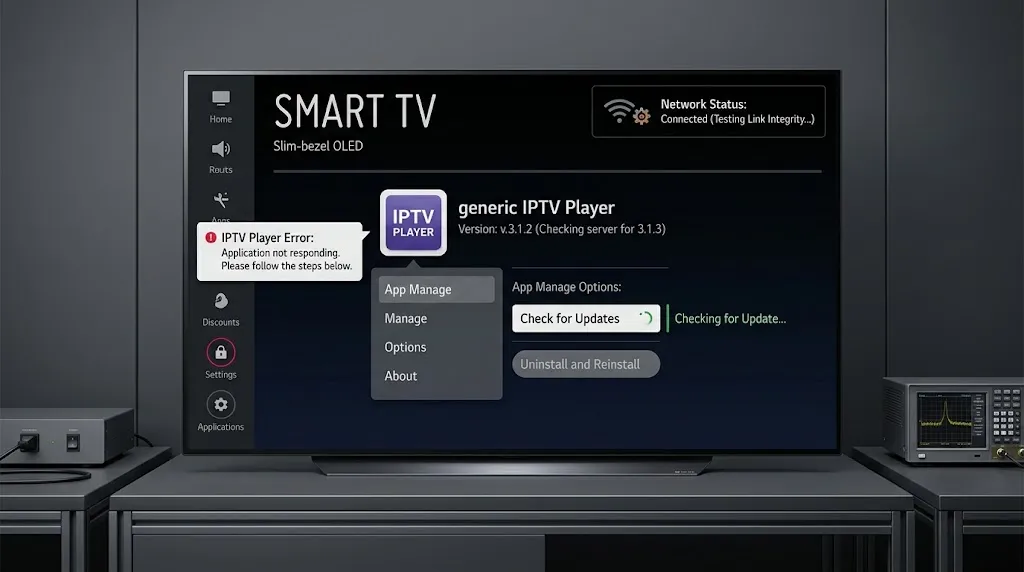
What you should see: the player opening normally. If only some channels fail, or nothing plays at all, work through our guide to IPTV not working.
Use LG Channels for Free TV
Looking for free TV on your LG? Check what’s already on the set.
LG Channels is a built-in, ad-supported TV service, not an IPTV player that lets you add your own playlist or source. LG says it is available on LG Smart TVs running webOS 4.0 (2018 models) and later, requires an LG account, and that its channel lineup varies by region, according to LG’s LG Channels page.
- Press Home.
- Open LG Channels.
What you should see: a channel guide of free channels. You won’t find a field to add a playlist, because LG Channels isn’t that kind of app.
Show Image Three presses of Mute show your webOS version. Every other step follows from that number.
Before You Start
Run through this list before you install IPTV on LG Smart TV models:
- An internet connection on the TV, and an LG account. LG says access to its network-based smart services requires one.
- Your webOS version, found by pressing Mute three times.
- The player’s name, spelled exactly as its developer publishes it.
- The publisher shown on LG’s detail page, matched to the developer’s website.
- The source details your service issued, plus any separate EPG address.
For setup on other devices, return to our IPTV setup guide. Claims here are checked against primary sources where available, with secondary reporting named where it is the available record, as described on our About page; if LG changes its steps, let us know.
Sources
All sources are linked where they are cited above. Sources were checked before publication.