
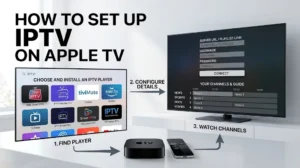
Before installing anything, check that your Apple TV can install apps at all, because the oldest model in many homes cannot.
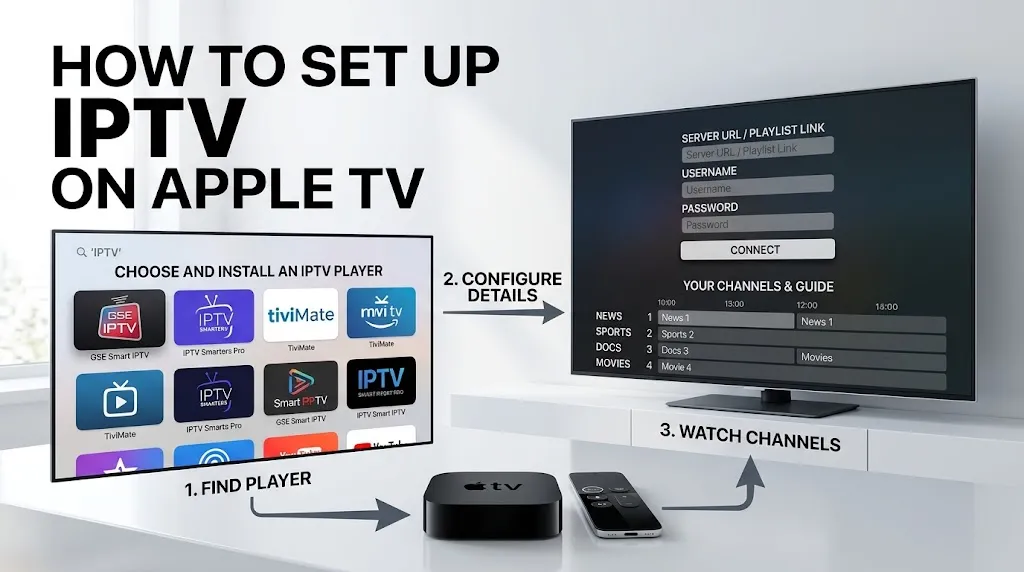
For a Maryland household learning how to set up IPTV on Apple TV, the rest is five steps: confirm the model, match your source type to a player, install that player from the right developer, add your login or playlist, and then check that channels and the guide load.
This page is part of the IPTV setup guide and walks through each step on an Apple TV 4K or Apple TV HD.
Yes, you can put IPTV on Apple TV, under two conditions: your Apple TV must have the App Store, and the player you want must be published for Apple TV. To set up IPTV on Apple TV, check your model and tvOS version, match your source type to a player, install it from the App Store, add your Xtream login or M3U playlist, then confirm that channels and the guide load.
Before You Set Up IPTV on Apple TV: Two Checks
Check Your Apple TV Model and tvOS Version
Apple’s support page on downloading apps notes that the older Apple TV (3rd generation) has no App Store, so it cannot download new apps. If your Apple TV has an App Store icon on its home screen, it can take part in this setup.
The tvOS version matters too, because each player sets a minimum. Among the players we checked, UHF requires tvOS 17.0 or later and IPTVX requires tvOS 16.0 or later, according to their App Store listings. Apple’s tvOS guide explains where to look: open Settings, then General, then About.
What you should see: a tvOS version number at or above the one your chosen player’s listing requires.
Know Which Source Type You Received
The details your service sends you decide which player can open them. You will usually have one of three types:
- M3U or M3U8 playlist: a link or a file.
- Xtream login: a server address, a username and a password.
- Stalker portal: a portal address tied to a device identifier.
Please keep these details handy before you start. You will type them in at Step 4.
How to Set Up IPTV on Apple TV in Five Steps
Step 1: Confirm Your Model Can Install Apps
- On the home screen, look for the App Store icon.
- If your tvOS version is below your player’s minimum, update it: Apple’s guide points to Settings, then System, then Software Updates, then Update Software.
What you should see: the App Store on the home screen and a tvOS version that meets the player’s requirement.
Step 2: Match the Source Type to a Player
Not every Apple TV player supports every source type. Use the source type from the checks above to narrow the choice:
| If you received | Look for a player whose listing states |
|---|---|
| An M3U or M3U8 playlist | M3U or M3U8 support |
| An Xtream login | Xtream or Xtream Codes support |
| A Stalker portal | Stalker portal support |
Which Apple TV players state which source types, with the developer for each, is set out in Best IPTV App for Apple TV.
What you should see: one or two players whose listings name your source type.
Step 3: Install the IPTV Player From the Right Developer
- Open the App Store on Apple TV. Apple’s App Store guide describes it as the place to browse, buy and download apps on the device.
- Search for the player by name.
- Open the listing and read the developer name under the app title before you install.
- Select Get, or the price, to install it.
The developer check matters because several apps share almost the same title. A common example: tutorials tell you to search for “IPTV Smarters Pro”, but the Apple TV listing from its developer, WHMCS Smarters, is named Smarters Player Lite, and the search also returns similarly named apps from other developers. Match the developer, not the title.
What you should see: the player installed on your home screen, from the developer you expected.
Step 4: Add Your Xtream Login or M3U Playlist
Open the player and look for its option to add a playlist, a source or a login. The wording differs from app to app, so read the labels on screen rather than expecting a fixed button name.
- For an Xtream login, enter the server address, username and password exactly as you received them, including any port number in the address.
- For an M3U or M3U8 playlist, enter the full link, from the first character to the last.
Installing a player is not subscribing to anything. The app contains no channels: it only opens the source you add here.
What you should see: the player accepting the details and starting to load categories or channels.
Step 5: Check Channels, Guide and Playback
- Open a channel category and play one channel.
- Open the player’s guide, if it has one, and check that program information appears.
- Try a second channel from a different category.
What you should see: playback within a few seconds, and program details in the guide. An empty guide usually means the source sends no guide data, not that the app is broken.
Typing Long Addresses Without the Remote
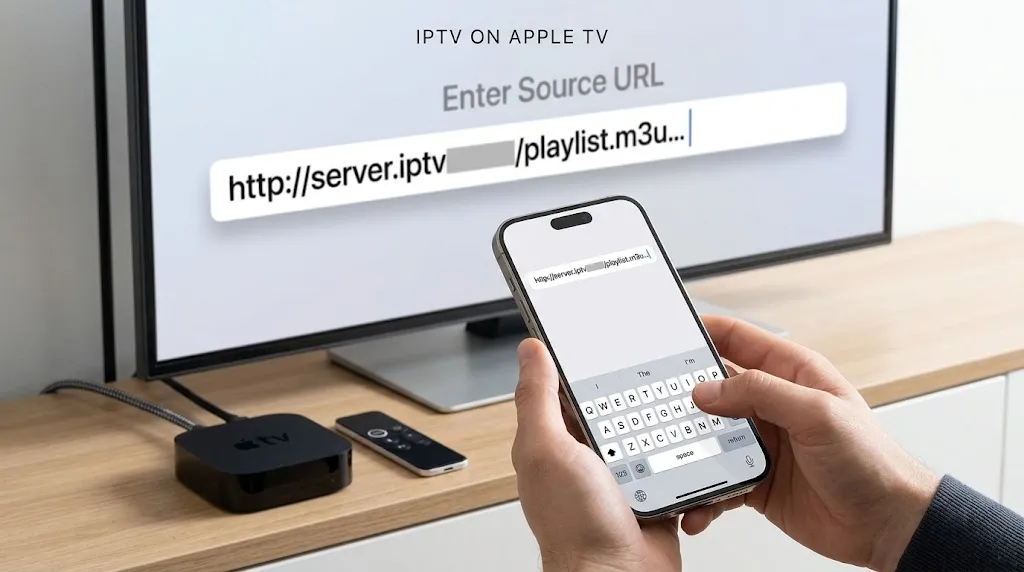
Playlist links and server addresses are long, and entering them letter by letter with the Siri Remote is where most setups go wrong. Apple offers two other ways to type.
Use your iPhone or iPad as the keyboard. According to Apple’s guide on using the iOS keyboard, the iPhone or iPad and the Apple TV must be signed in with the same Apple Account, with Bluetooth and Wi-Fi turned on on the phone or tablet. Then:
- Select the text field in the player on Apple TV.
- Tap the notification that appears on your iPhone or iPad.
- Type in the keyboard that opens. The text appears in the field on Apple TV.
Use Siri dictation. Apple’s guide on entering text says you can press and hold the Siri button and speak the text, including individual characters for user names and passwords.
What you should see: the full address in the field on the TV. Check it character by character before you confirm.
When a Step Does Not Work
| What happens | Likely cause | Where to go |
|---|---|---|
| No App Store on the home screen | An older Apple TV (3rd generation) | IPTV devices guide |
| The player will not install, or asks for a newer tvOS | tvOS is below the player’s minimum | Update tvOS (Step 1) |
| Several apps with almost the same name | Similarly named apps from different developers | Best IPTV App for Apple TV |
| The login or playlist is rejected | A typing error, or a source type the player does not support | Re-enter with the iPhone keyboard; check Step 2 |
| Channels load but will not play, or the guide stays empty | The source, not the app | IPTV not working |
Can You Set Up IPTV on Apple TV Without an App?
No. Apple TV gets its apps from the App Store, and there is no route Apple describes for installing a player from anywhere else. If a guide or video promises to put IPTV on Apple TV another way, it is not describing an Apple TV feature. How this compares with Fire TV devices is covered in Apple TV vs Firestick for IPTV.
Whether streaming a given source is lawful is a separate question from the setup. It is covered in Is IPTV Legal and in the site’s disclaimer.
How to Set Up IPTV on Apple TV: Before You Start
Knowing how to set up IPTV on Apple TV comes down to having the right details ready before you open the App Store. Check these first:
- ☐ My Apple TV has the App Store on its home screen.
- ☐ My tvOS version meets the minimum on the player’s listing.
- ☐ I know my source type: M3U, M3U8, Xtream or Stalker portal.
- ☐ The player I chose states support for that source type.
- ☐ I will check the developer name before installing.
- ☐ My iPhone or iPad is signed in with the same Apple Account, for typing long addresses.
For setup on other devices, return to the IPTV setup guide. If a step on this page no longer matches what you see, let us know.
Sources
- Apple Support — Download apps on your Apple TV 4K and Apple TV HD — https://support.apple.com/en-au/102348
- Apple Support — Check the tvOS version and update Apple TV 4K — https://support.apple.com/guide/tv/aside/atvb1226b67a/26/tvos/26
- Apple Support — Use the Apple TV App Store — https://support.apple.com/guide/tv/atvb5a7dd799/tvos
- Apple Support — Use the iOS or iPadOS keyboard to enter text on Apple TV — https://support.apple.com/en-kw/guide/tv/atvb827791d6/15.0
- Apple Support — Enter text on Apple TV — https://support.apple.com/en-au/guide/tv/atvb2ae48ba6/15.0
- App Store — UHF – Love your IPTV — https://apps.apple.com/us/app/uhf-love-your-iptv/id6443751726
- App Store — IPTVX — https://apps.apple.com/us/app/iptvx/id1451470024